

TL;DR
Airtable forms let you collect information and automatically save each response as a record in your Airtable base. If you’re wondering can you see your Airtable submissions, the answer is yes — you can find them in the table connected to your form. If you need more flexibility, Baserow forms offer both standard Form mode and Survey mode, while the Application Builder lets you create more advanced forms and custom interfaces.
If you’re using Airtable native form to collect information, you may be wondering: can you see your Airtable submissions? Yes. Every form submission is added as a record to the Airtable base connected to your form, so you can review responses alongside your other data.
In this guide, we’ll explain how Airtable forms work, where to find form submissions, and what to consider if you need more advanced forms or survey features.
What are Airtable forms?
Airtable forms let you collect information from other people without giving them direct access to your database. You create a form, choose the fields you want people to complete, and share the form with a link.
When someone submits the form, their answers are saved as a new record in the connected table. This makes Airtable forms useful for collecting customer requests, event registrations, feedback, applications, and other information.
You can use different fields in Airtable to collect specific types of data, including text, dates, attachments, and linked records. You can then organize and analyze those submissions using views, filters, formulas, or rollup fields.
Can you see your Airtable submissions?
Yes. Airtable form submissions are stored in the table connected to your form.
To see them:
- Open the Airtable base containing your form.
- Open the table connected to the form.
- Look for the records created through the form.
- Review or organize the responses using your preferred view.
The form itself is mainly designed for collecting responses. Your form submissions are managed in the underlying table, where you can work with them alongside the rest of your Airtable records.
If you need to process submissions automatically, you can also use Airtable automations to trigger actions when new records are added.
Looking for an Airtable forms alternative?
If you need forms but want more flexibility in how people submit information, Baserow offers two form modes.
The standard Form mode works similarly to Airtable forms. You can create a form connected to a database table, select the fields you want to display, and share the form so people can submit information without accessing the underlying database.
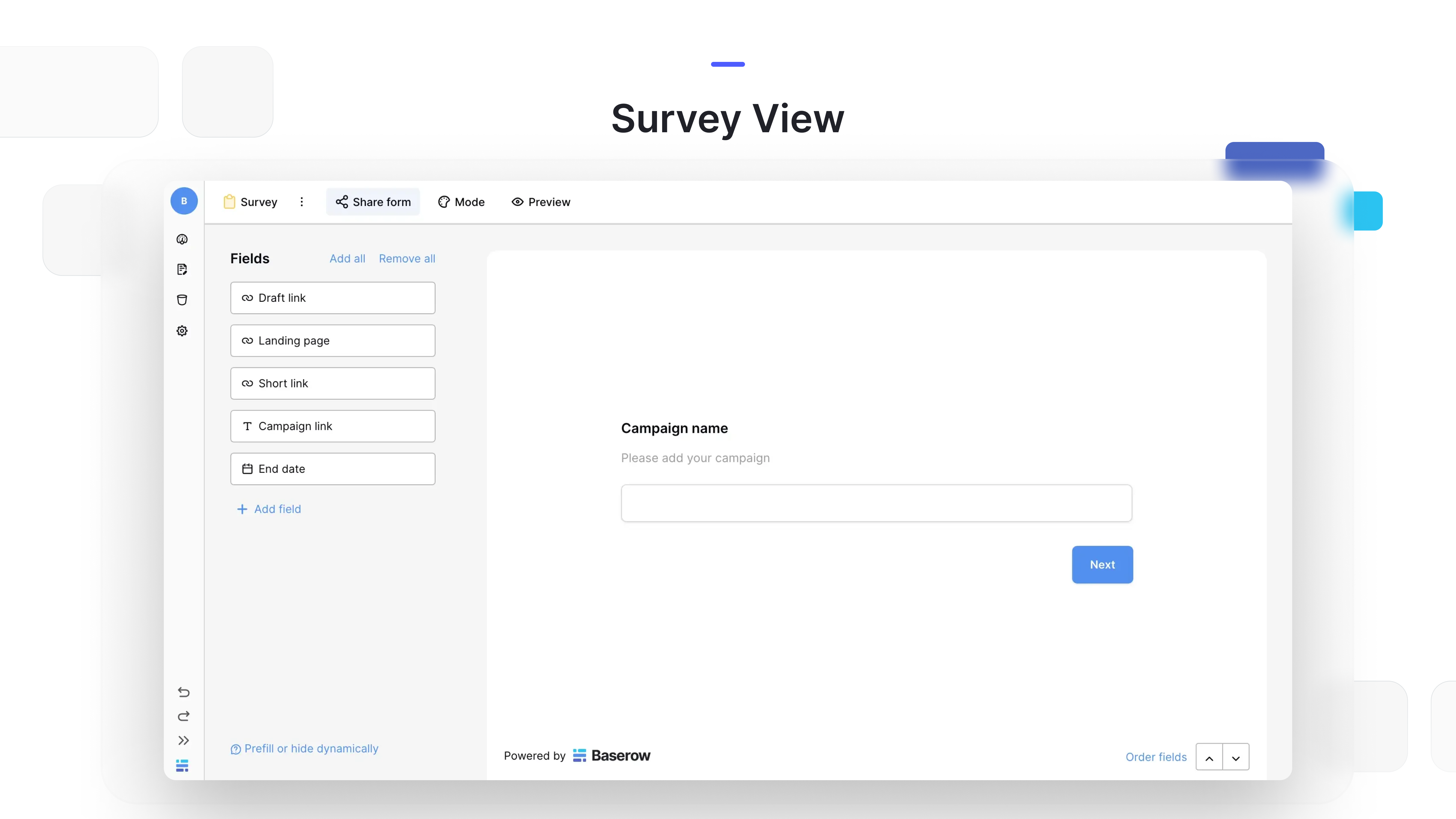
Baserow also includes Survey mode, which is designed for a more focused survey-style experience. This can be useful when you want respondents to move through questions in a more structured way.
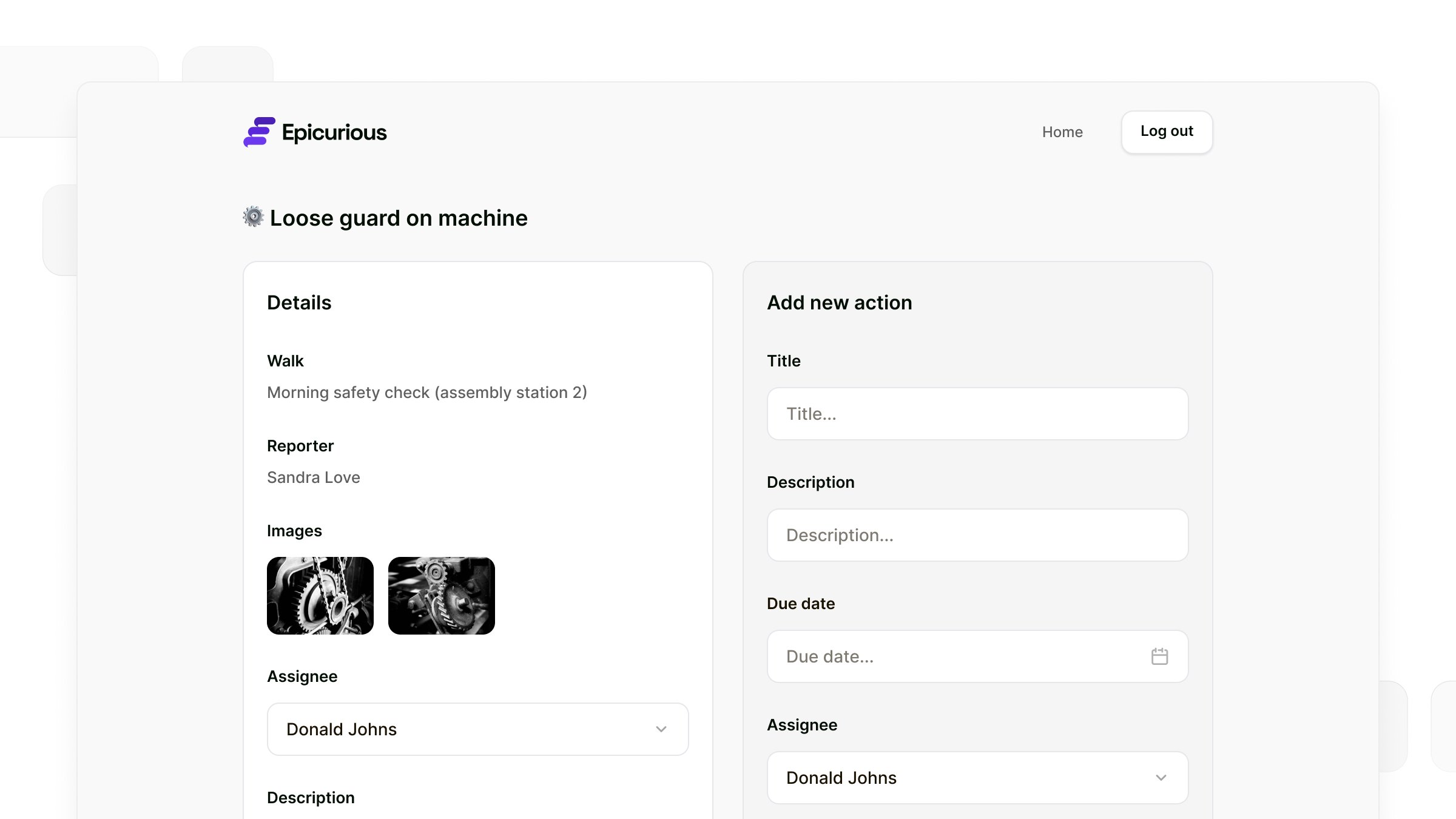
For more advanced use cases, Baserow’s Application Builder lets you create custom interfaces around your data. Instead of being limited to a standard form, you can build a more tailored experience with different components and interactions.
FAQ
Can you see your Airtable submissions?
Yes. Every response submitted through an Airtable form is saved as a new record in the connected table. You can open the table to view, filter, and manage your submissions.
Where do Airtable form submissions go?
Airtable form submissions are added to the table that the form is connected to. Each submission creates a new record containing the information entered by the respondent.
Can you create surveys with Airtable forms?
Airtable forms can be used to collect survey responses, but if you need a dedicated survey-style experience, Baserow Survey mode is designed specifically for this use case.
Does Baserow have an Airtable forms alternative?
Yes. Baserow offers a standard Form mode for collecting submissions, plus Survey mode for more structured questionnaires. For more advanced use cases, you can use the Application Builder to create custom forms and interfaces around your database.

Baserow 2.4 adds Button fields, Graph elements, workflow automation, AI provider management, improved Group By views, and 30+ more updates.

Discover how Airtable and Baserow compare in features, flexibility, speed, and scalability. Compare pricing plans and hidden costs to make an informed decision!

Explore the best open-source software alternatives to proprietary products. Discover OSS tools, licenses, and use cases with our updated directory.