
TL;DR
- Trigger actions directly from rows with the new Button field
- Build charts directly in the Application Builder with the Graph element
- Repeat workflow steps with the new Go to node
- Manage AI providers and models across your workspaces
- Trigger workflows from incoming emails
- Return responses from workflows
- Stop running workflows from workflow history
- Organize grouped data with Sections and Columns layouts
- Track Data Sync history and import from shared Airtable views
- Set field-level permissions for specific users and teams
- Build flexible dashboards with drag-and-resize layouts
- Navigate your work faster with the new workspace homepage
- And more improvements across Database Builder, Application Builder, and Automations
Introducing Baserow 2.4!
With Baserow 2.4, you can trigger actions directly from your database with the new Button field, while giving admins more control over AI providers, permissions, and shared data. You can also build workflows that react to incoming emails, repeat steps until a condition is met, and stop running when something goes wrong.
This release also brings new ways to organize dashboards and grouped data, track Data Sync runs, import from Airtable, and navigate your workspaces more efficiently.
Let’s take a look at what’s new.
Trigger actions with Button field
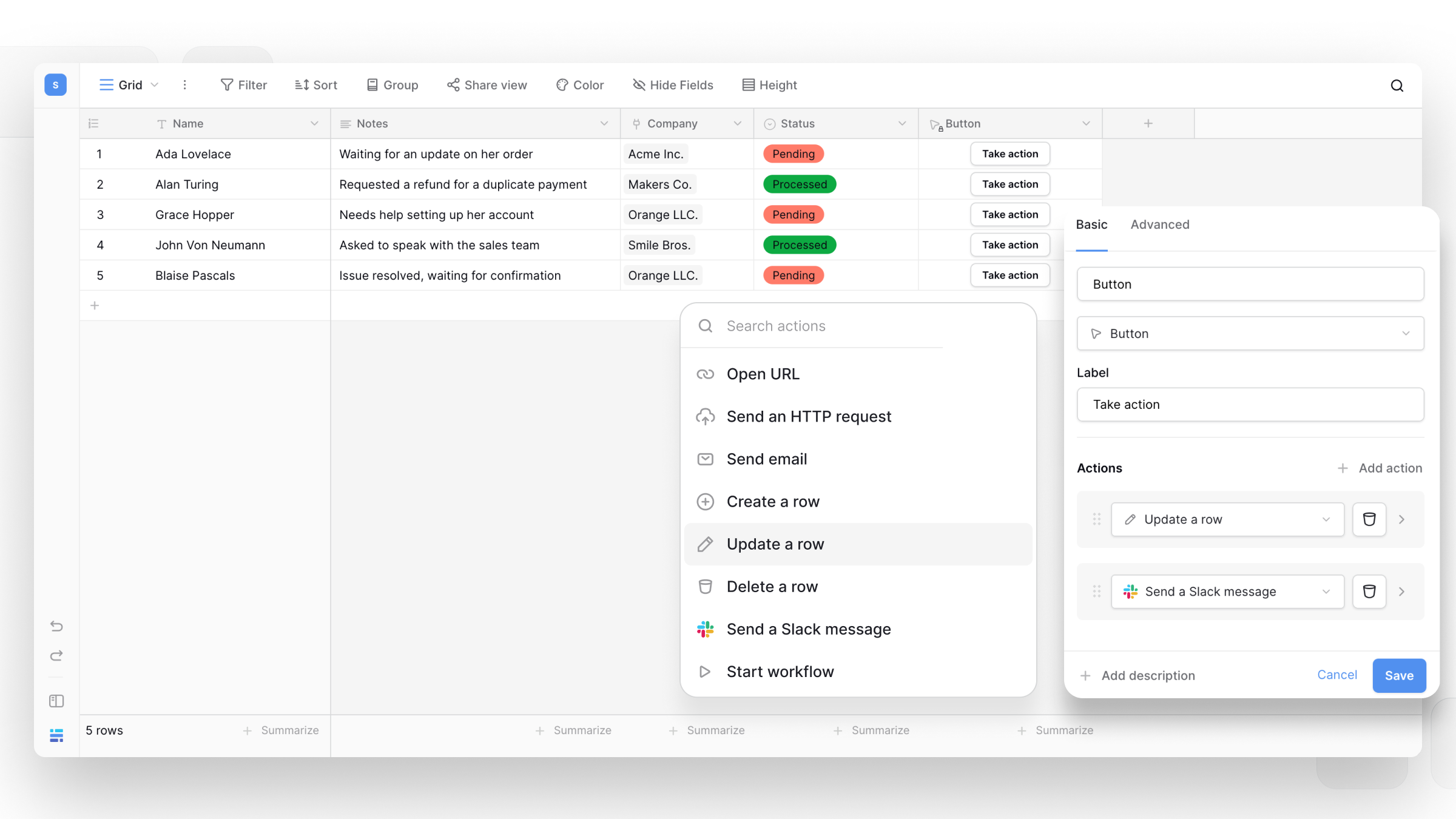
The new Button field lets you add a button to each row and trigger actions for that specific row.
This is useful for simple actions that someone needs to start manually, such as sending an email to the customer in that row, updating the row, starting a workflow, or sending information to another service.
Button field currently can:
- Create, update, or delete rows
- Start a workflow
- Send an HTTP request
- Send an email
- Send a Slack message
- Open a URL
- Combine multiple actions and control their order
Actions can also pass information to the next action. For example, a button could send an HTTP request, use the response to create a new row, and then send an email with the result.
This makes it possible to turn common actions into simple, repeatable buttons directly in your database.
To add a Button field, click the + button after your last field, select Button, and add one or more actions for the button.
Note: Button actions use automation credits on Baserow Cloud. The credit cost depends on the actions you configure.
👉 Learn more about the Button field
Build charts with the new Graph element
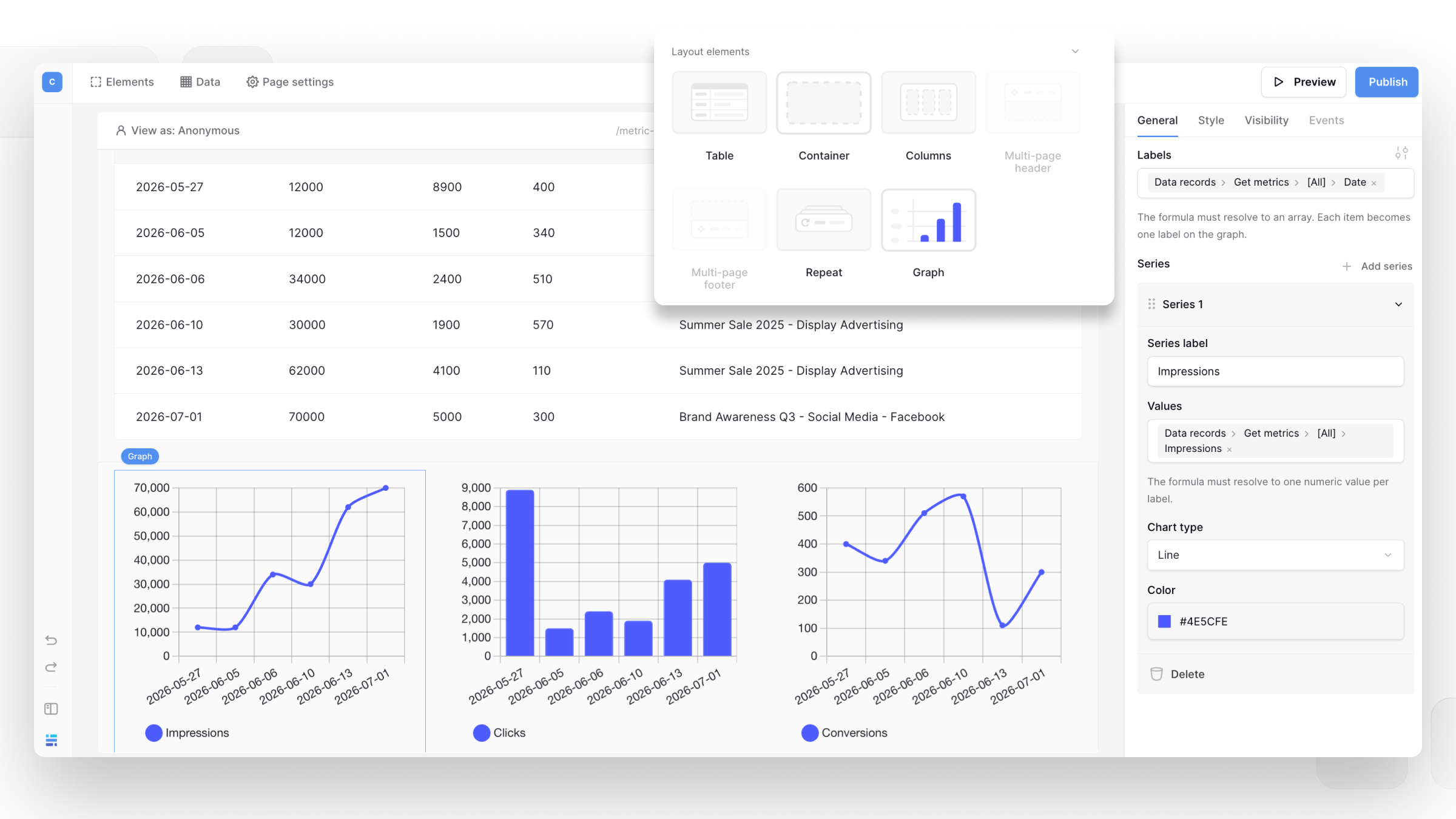
The new Graph element lets you add charts directly to your Application Builder apps and visualize your data without custom code.
You can connect the element to your Baserow data, choose the data to display, and configure the chart to fit your use case. This makes it easier to turn database records into clear visualizations directly in your apps.
For example, you can use Graph elements to display metrics such as impressions, clicks, or conversions and build simple dashboards for tracking performance over time.
To add a graph, open the Application Builder, add a Graph element to your page, and configure its labels, values, chart type and color.
This feature is available on the Advanced or Enterprise plan.
👉 Learn more about the Graph element
Build while loops with the Go to node
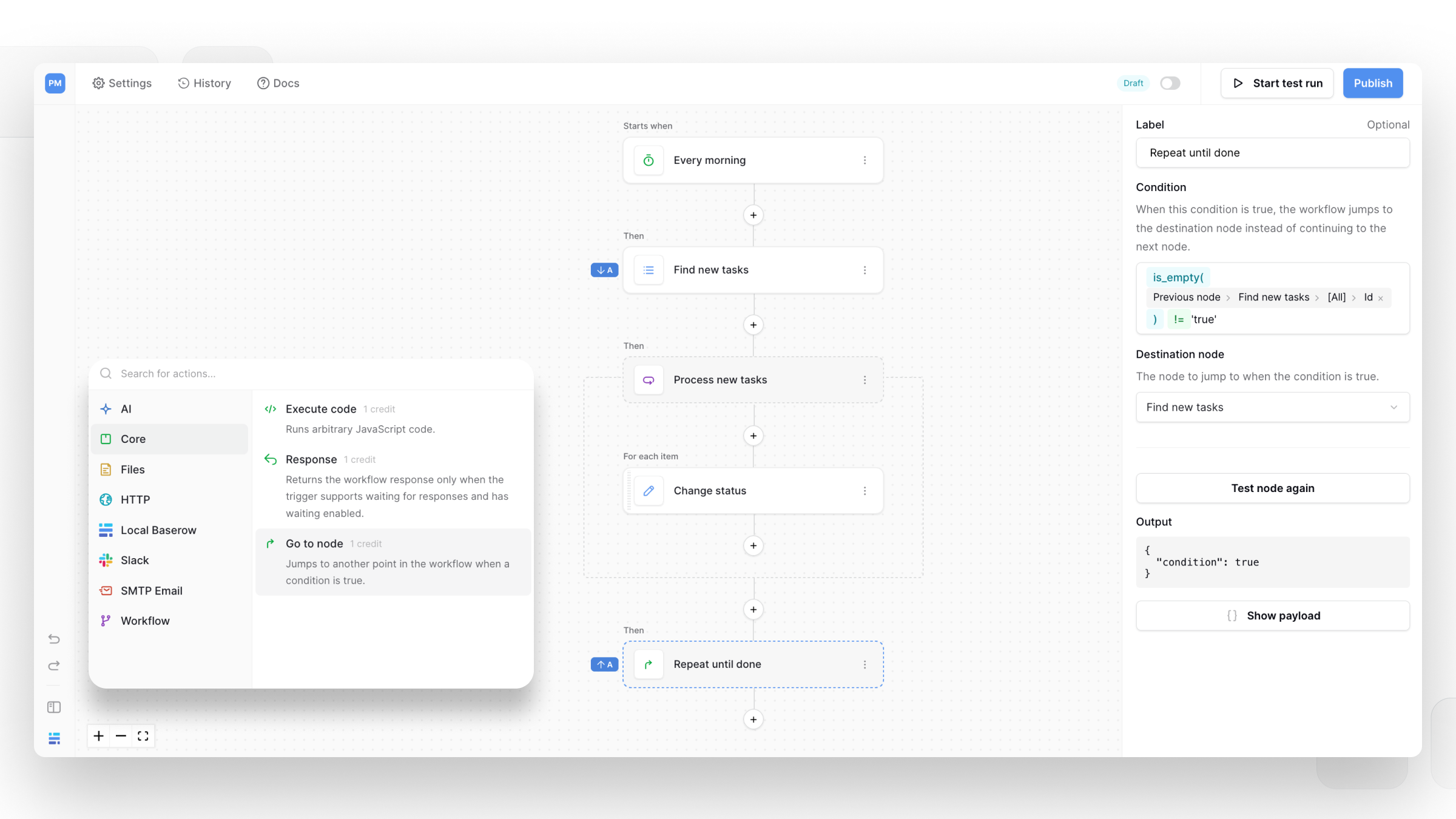
The new Go to node lets you repeat part of an automation until a condition is no longer met. This makes it possible to build while loops and retry logic without knowing in advance how many times a step should run.
For example, you can retry an HTTP request until it succeeds, or keep processing records until a condition is met. The workflow stops automatically when the condition is no longer true.
To add one to a workflow, select Core → Go to and choose the node to return to and the condition that determines when the loop should continue.
👉 Learn more about the Go to node
Manage AI providers and models
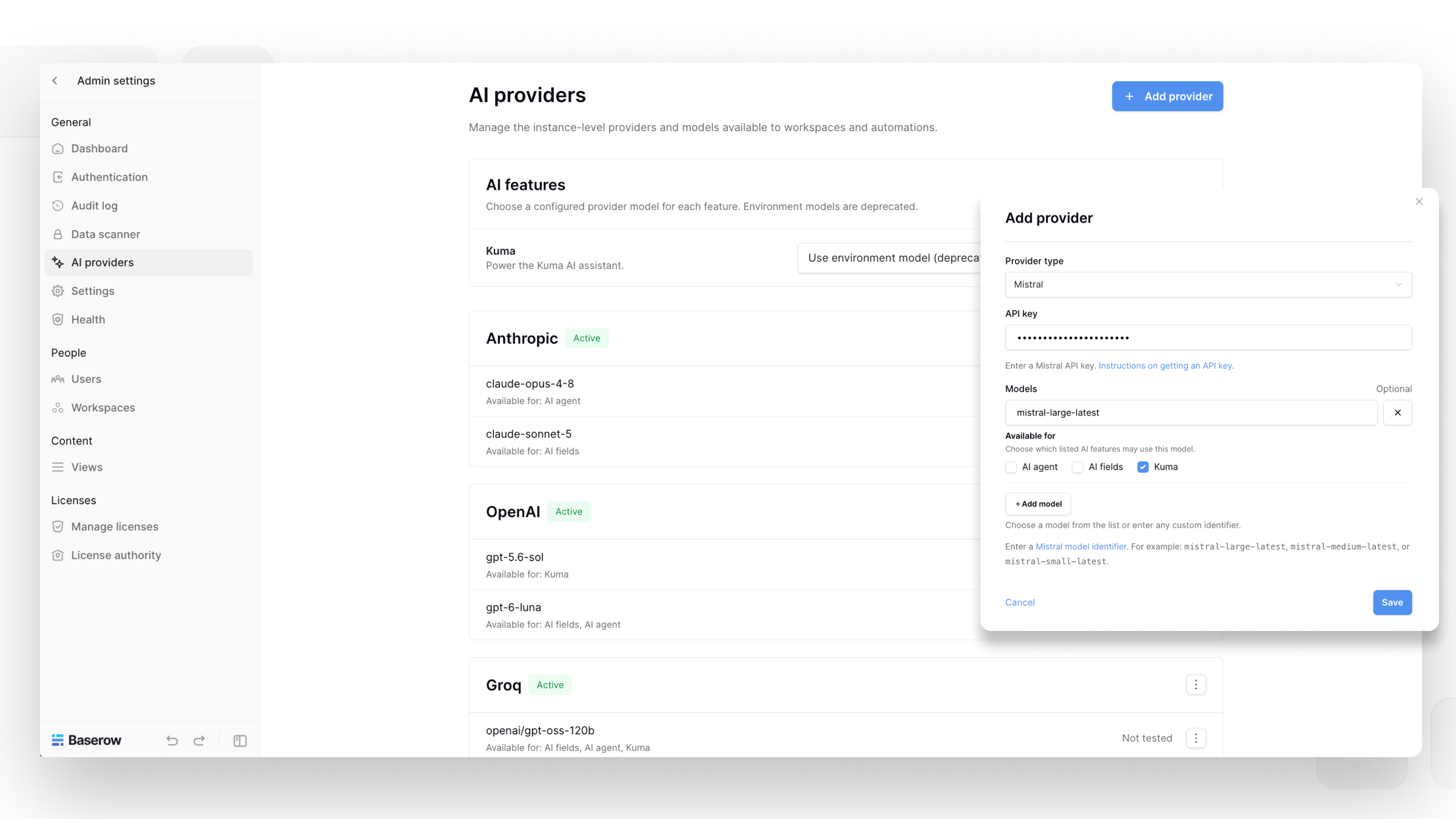
Baserow 2.4 introduces a new interface for managing the AI providers and models available across your instances and workspaces.
Admins can add AI providers, configure API keys, test connections, and choose which models are available for different Baserow AI features. You can also control which model is used for AI features such as Kuma.
This gives teams more control over which models are used for which tasks. For example, you can use a less expensive model for AI fields while reserving a more powerful model for Kuma.
To manage AI providers, go to Admin tools → AI providers. Instance admins can configure providers and models for the entire instance, while workspace admins can control which inherited providers and models are available in their workspace or add their own.
👉 Learn more about managing AI providers
A new workspace homepage
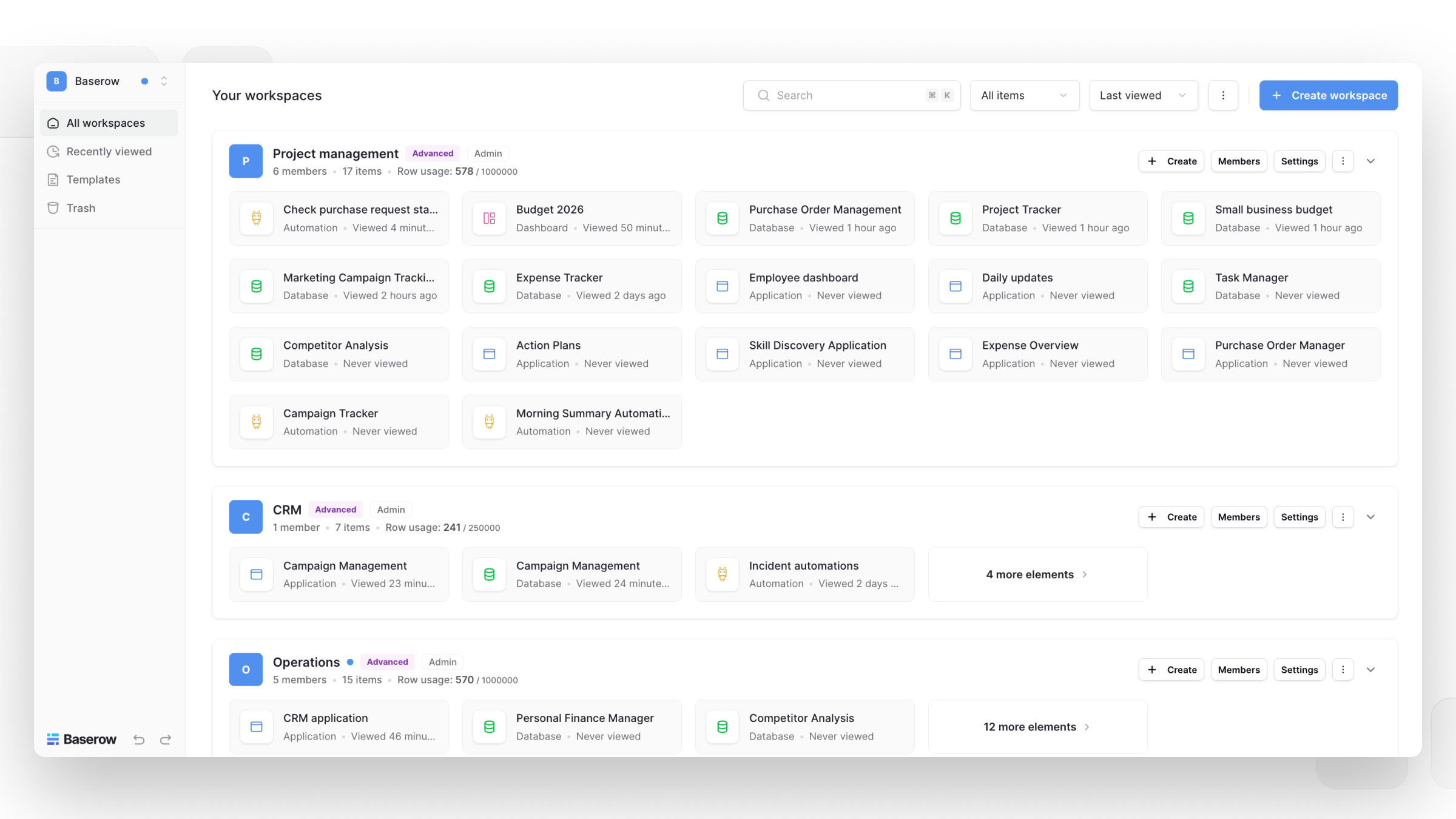
The new workspace homepage gives you a clearer overview of what you’re working on across Baserow.
Instead of simply listing your databases and applications, it surfaces recently viewed content so you can quickly get back to the things you were working on. It can show databases, applications, dashboards, views, and Application Builder pages across your workspaces.
You can sort and collapse sections, search across your Baserow content, and quickly access workspace settings, members, and database creation. You can also start a Kuma conversation directly from the workspace homepage.
Trigger workflows with inbound email
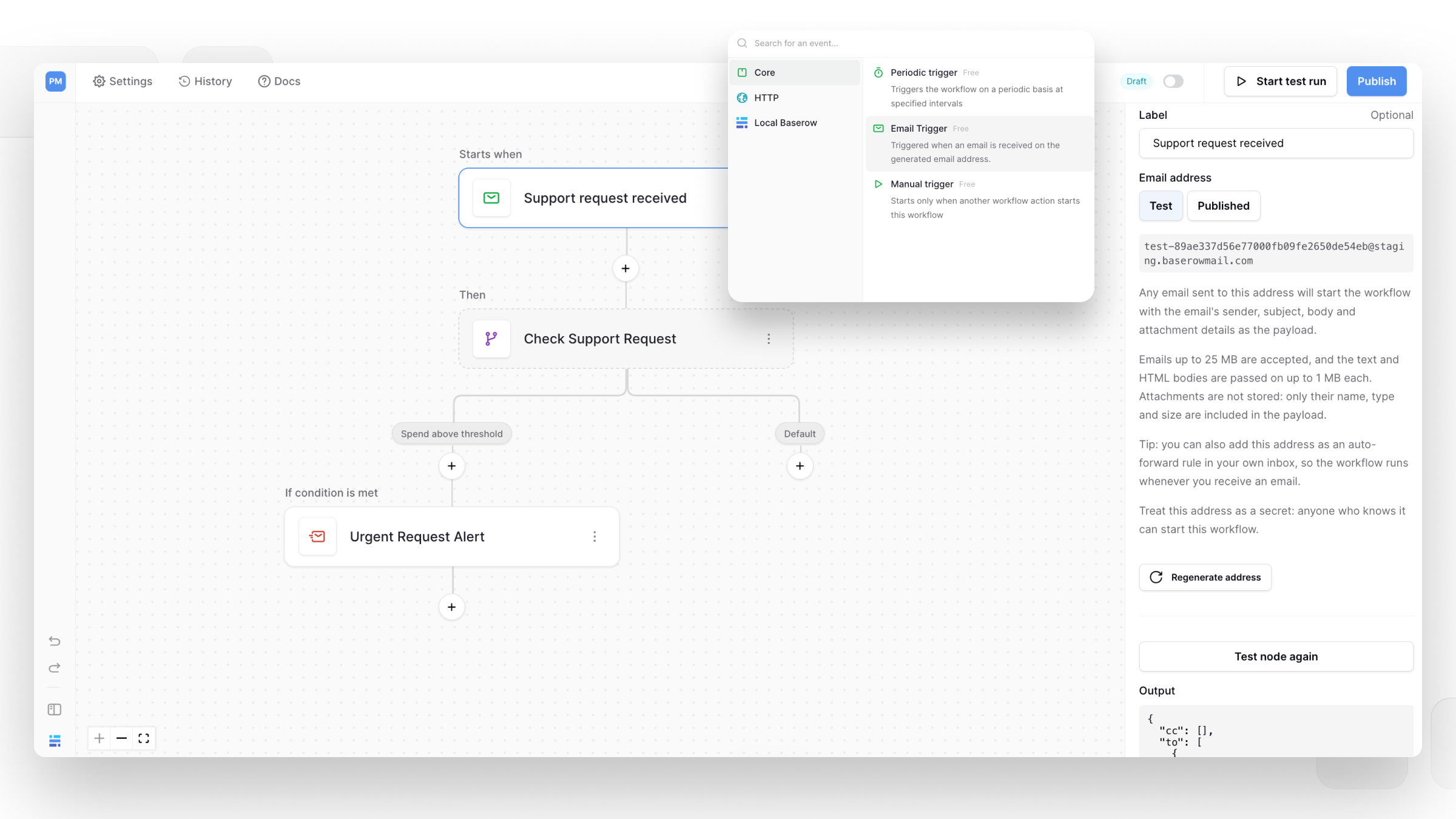
The new Email trigger lets you start a workflow whenever an email is sent to a unique email address generated by Baserow.
This makes it possible to turn incoming emails into automated workflows without requiring an external email service or webhook. For example, you could receive an email and automatically process its contents, create records, or trigger another action.
To use it, add a new trigger to a workflow and select Email trigger.
👉 Learn more about Email trigger
Return responses from workflows
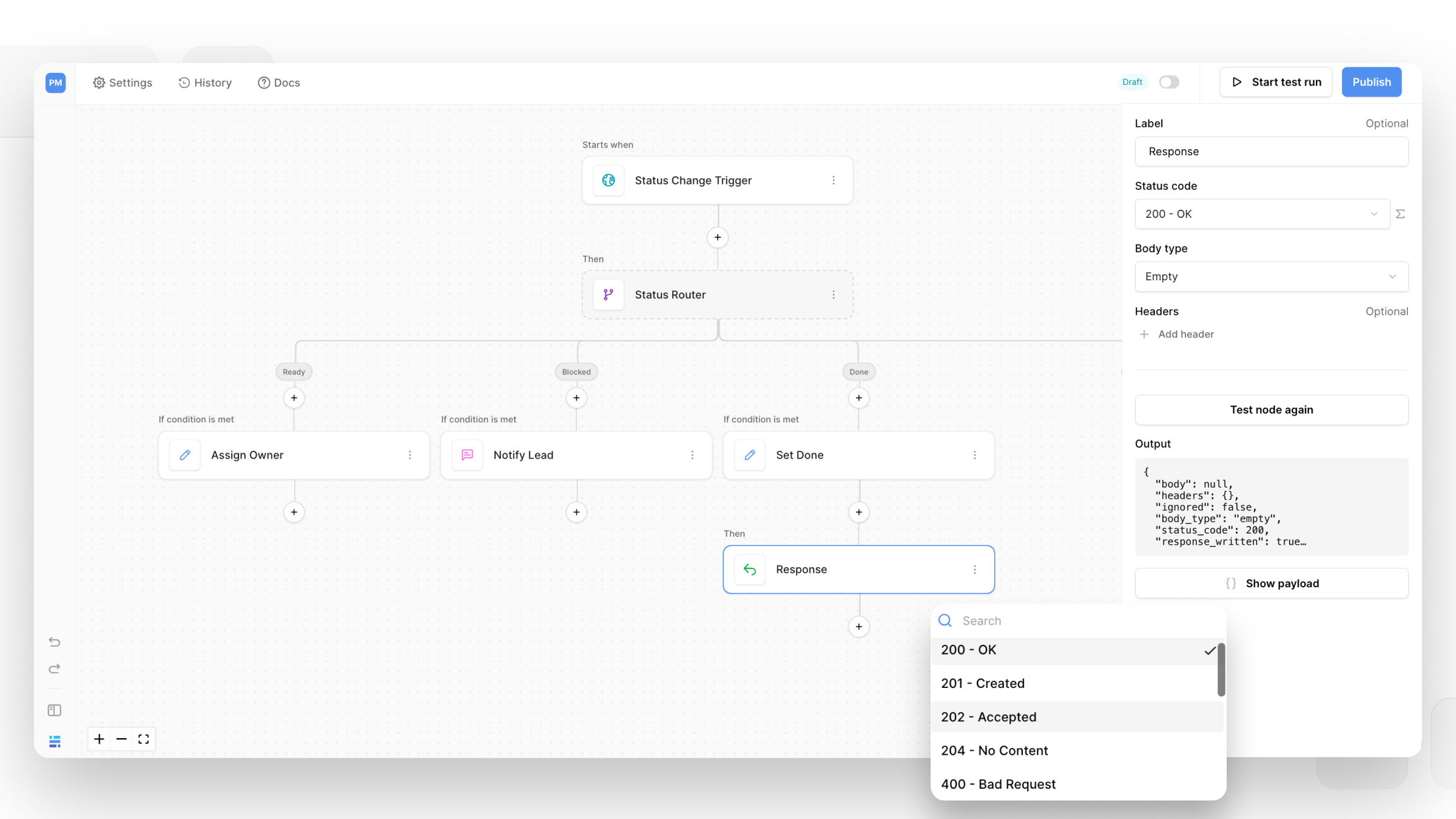
The new Response node lets workflows return a response to the trigger that started them.
This is especially useful for workflows triggered by HTTP requests, where you can use the response as the endpoint’s result. It can also be used when one workflow calls another.
To use it, add a new action to your workflow, select Core → Response, and configure the response you want to return.
👉 Learn more about the Response node
Stop a running workflow
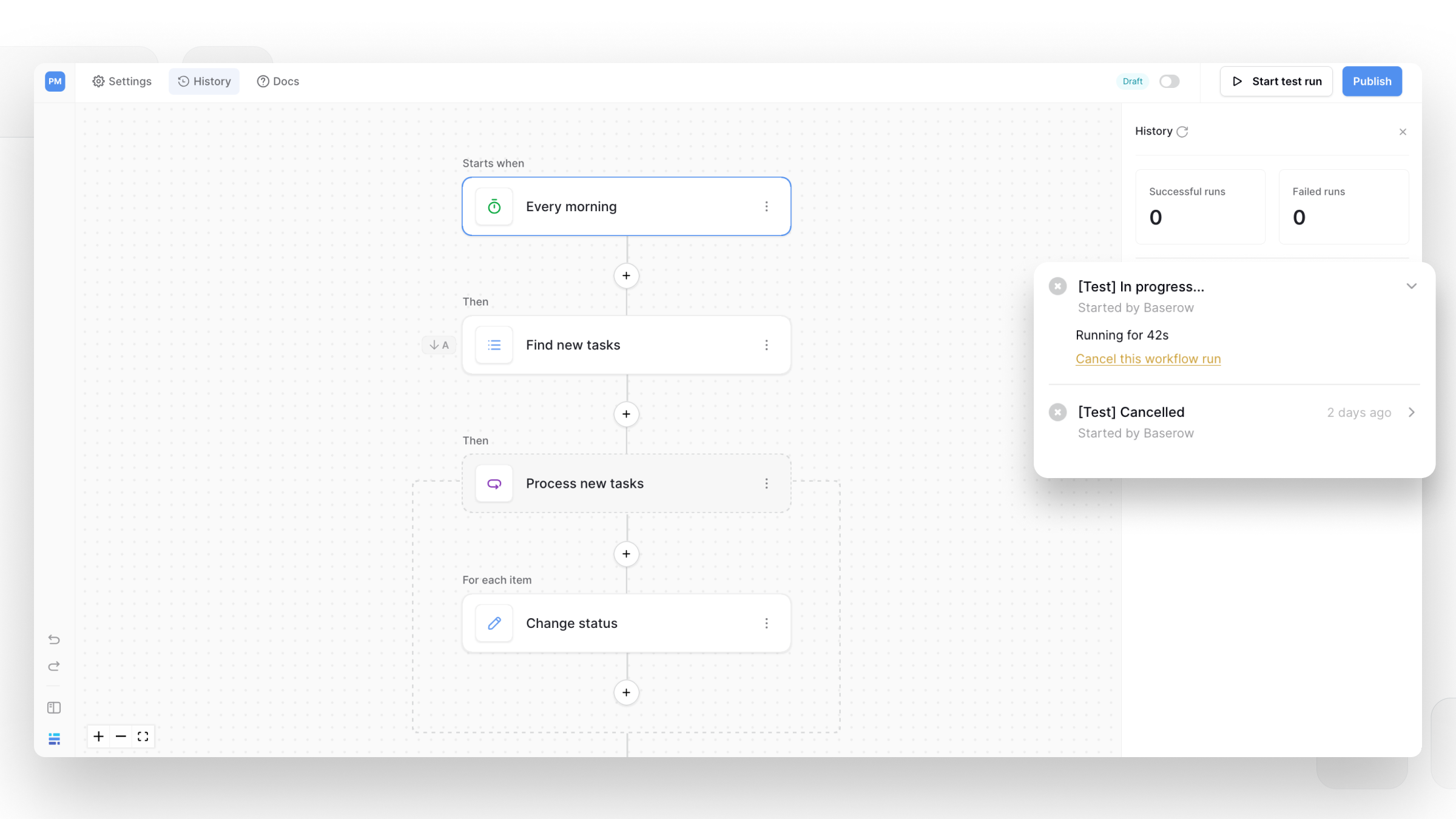
Long-running workflows can now be stopped directly from the workflow run history.
If a workflow is stuck in a loop, taking longer than expected, or making a request you no longer want to wait for, you can cancel the run instead of letting it continue. The cancellation is picked up before the next workflow step is dispatched, so the current step may finish before the workflow stops.
To stop a workflow, open History, find the running workflow, and click Cancel this workflow run.
👉 Learn more about stopping workflow runs
Build dashboards with a flexible grid
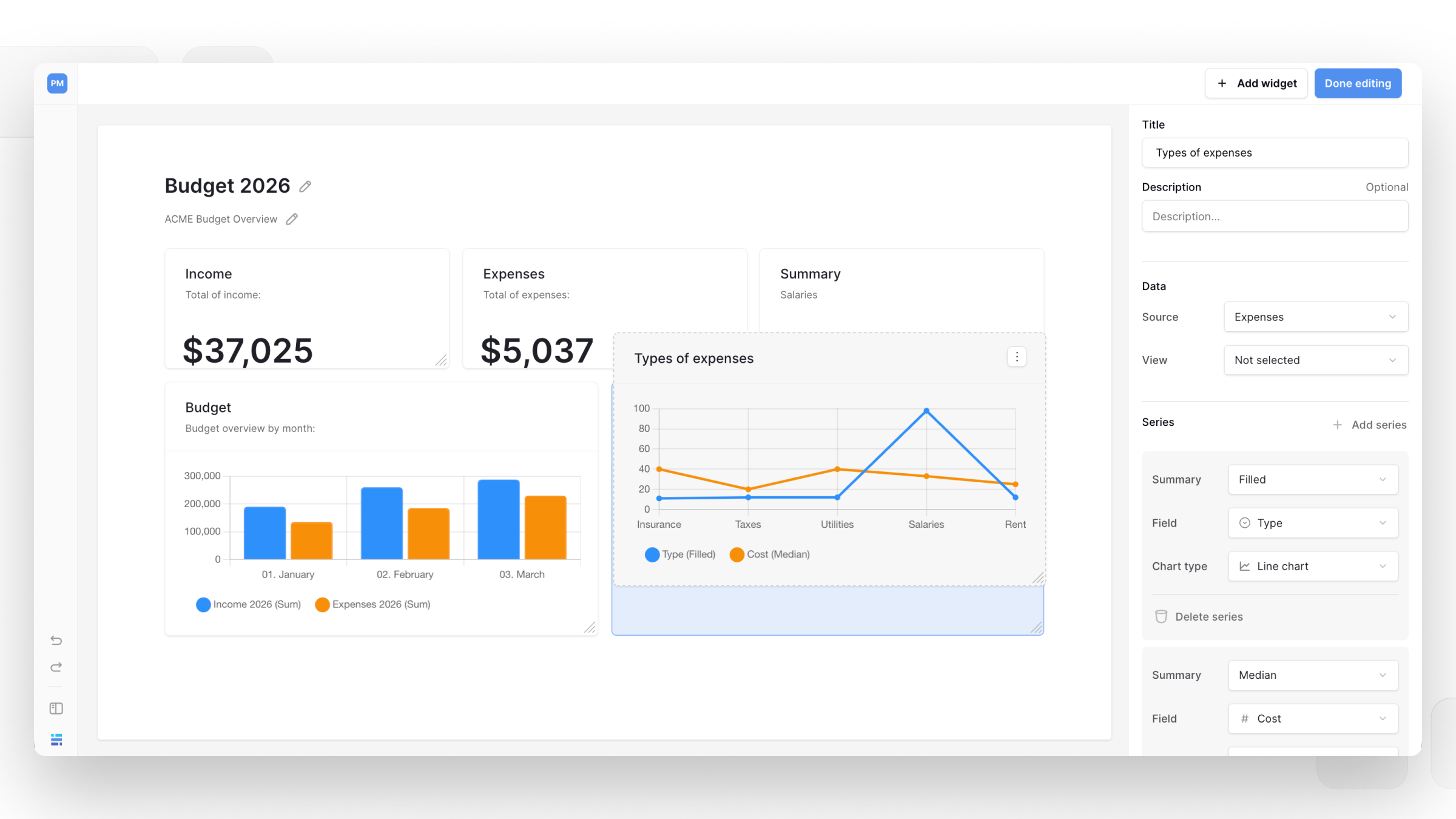
The Dashboard Builder now uses a grid system that makes it easier to arrange your dashboard elements.
Drag and resize widgets to create layouts that fit your data and the way your team wants to view it, without being restricted to a fixed arrangement.
Improved Group By views
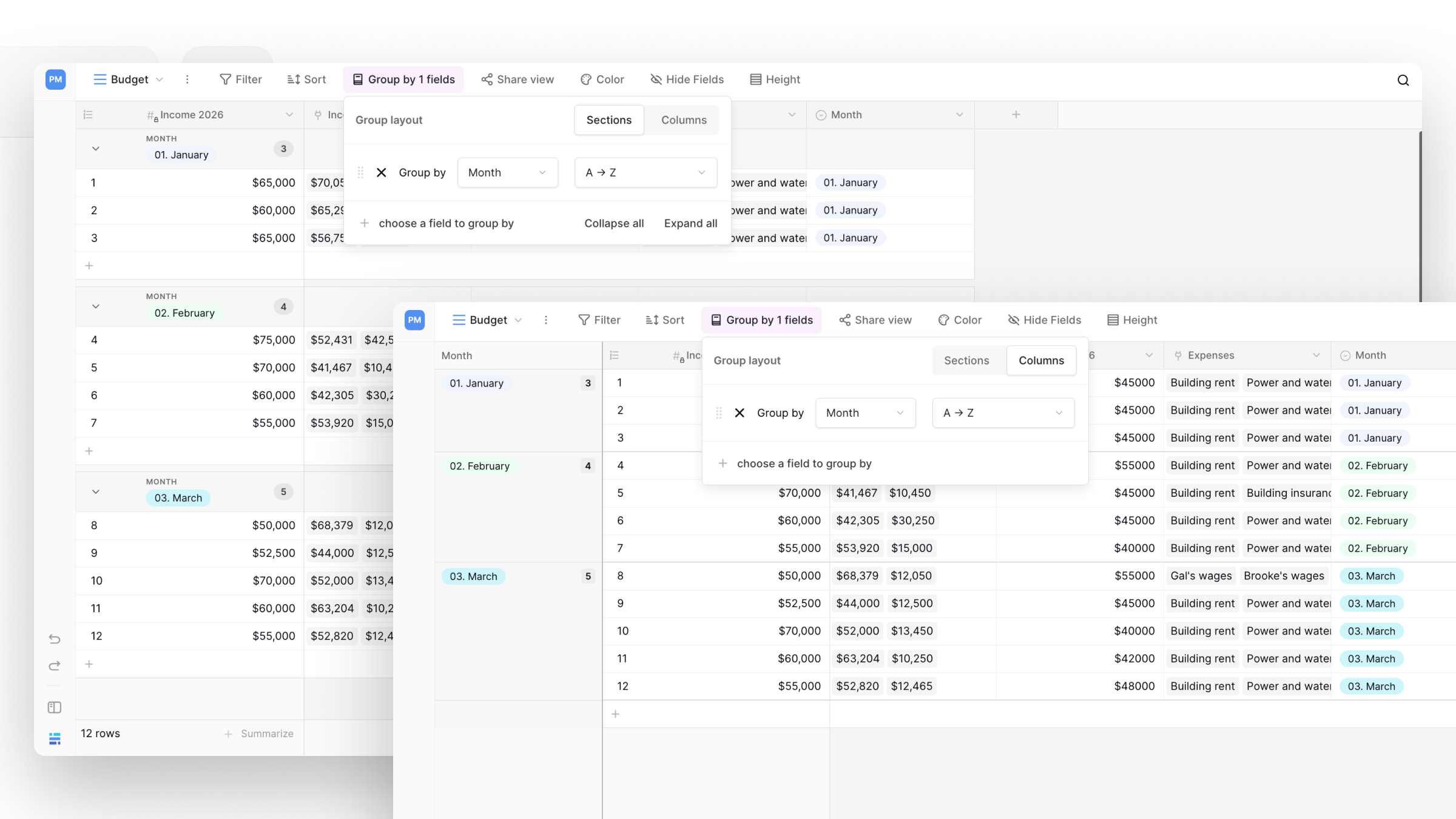
We’ve made Group By views more flexible and easier to work with.
You can now choose between Sections and Columns layouts. The Columns layout brings back the familiar Group By experience from before Baserow 2.3, now available as an optional layout alongside Sections.
You can also reorder rows within and between groups and add new rows directly within a group without scrolling to the bottom of the view.
Columns gives you a more compact way to display grouped data, while row drag-and-drop makes it easier to reorganize records directly from the view.
👉 Learn more about grouping rows
Track Data Sync history
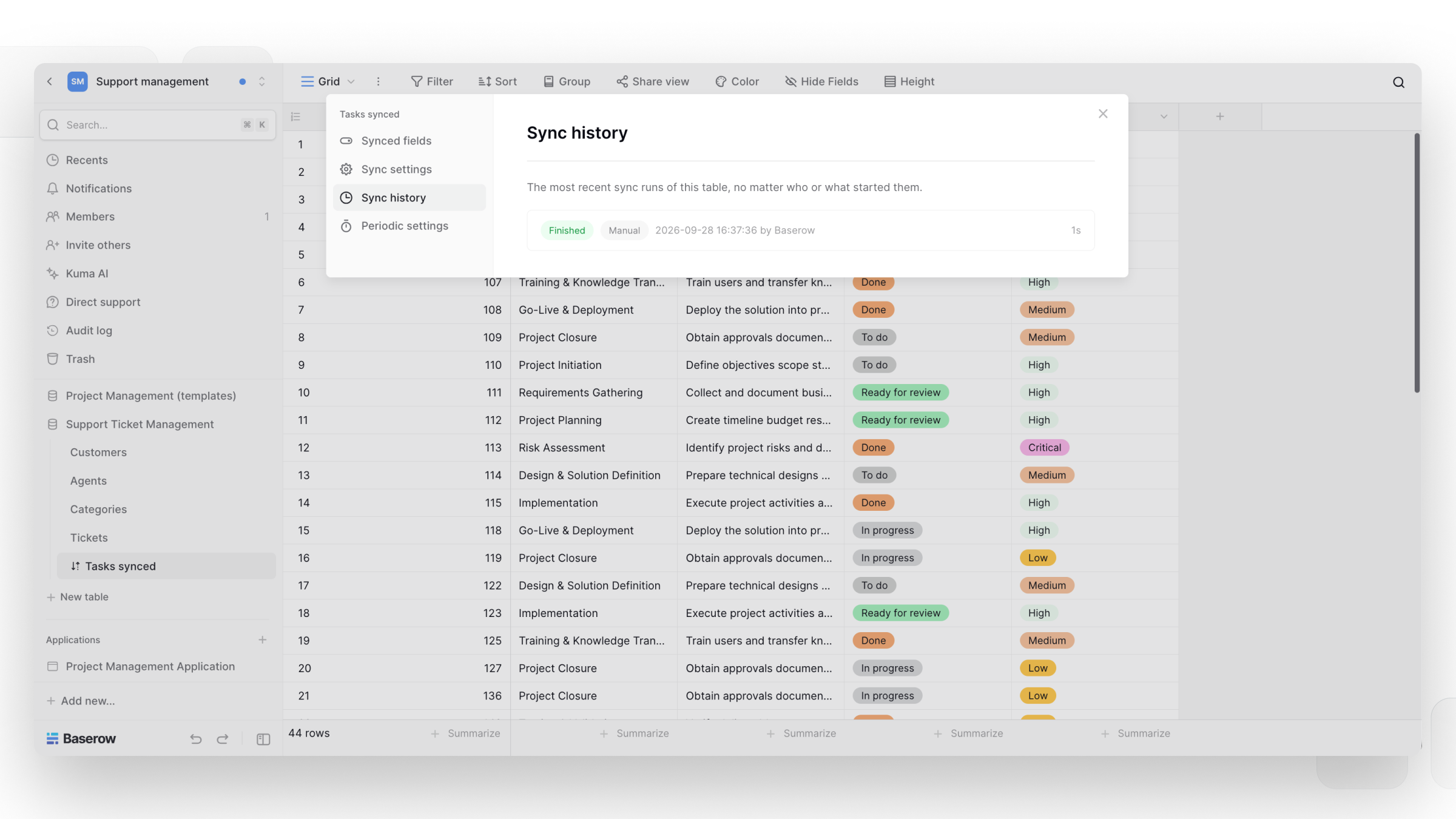
Data Sync now keeps a history of sync jobs, making it easier to understand what happened during previous runs and monitor syncs that are still in progress.
Open your sync configuration to see when previous runs started and finished and whether they completed successfully. Running jobs also retain their progress when you refresh the page.
To view it, open the table menu, select Update sync configuration, and go to Sync history.
Give specific users and teams permission to edit fields
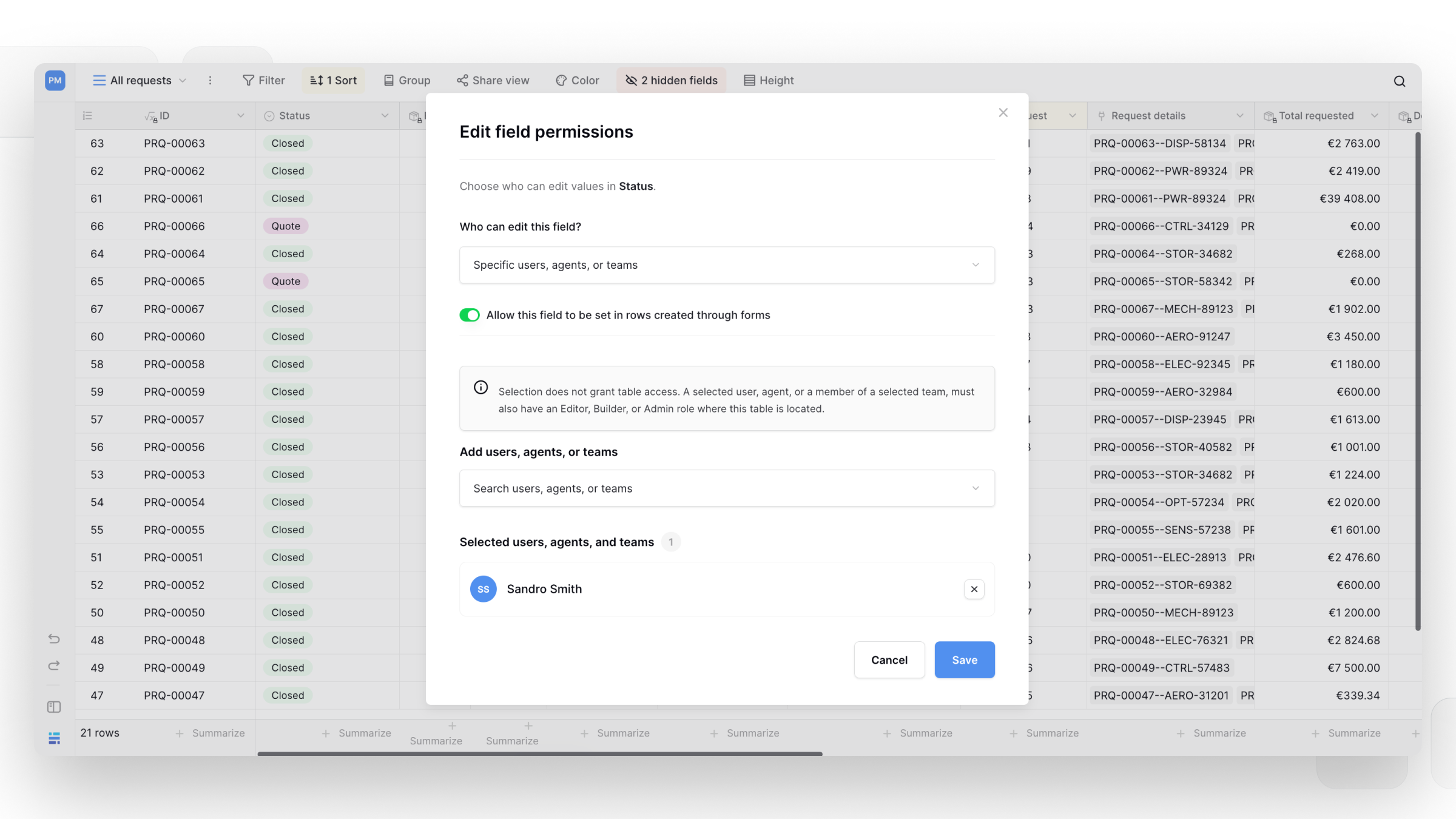
You can now control who can edit a specific field by allowing only selected users, or teams to change its values.
For example, you can let a specific team update a campaign’s Start date while keeping the field locked for everyone else.
To configure it, open a field’s menu, select Edit field permissions, choose Specific users, agents, or teams, and select who can edit the field.
👉 Learn more about field permissions
Improved Airtable imports
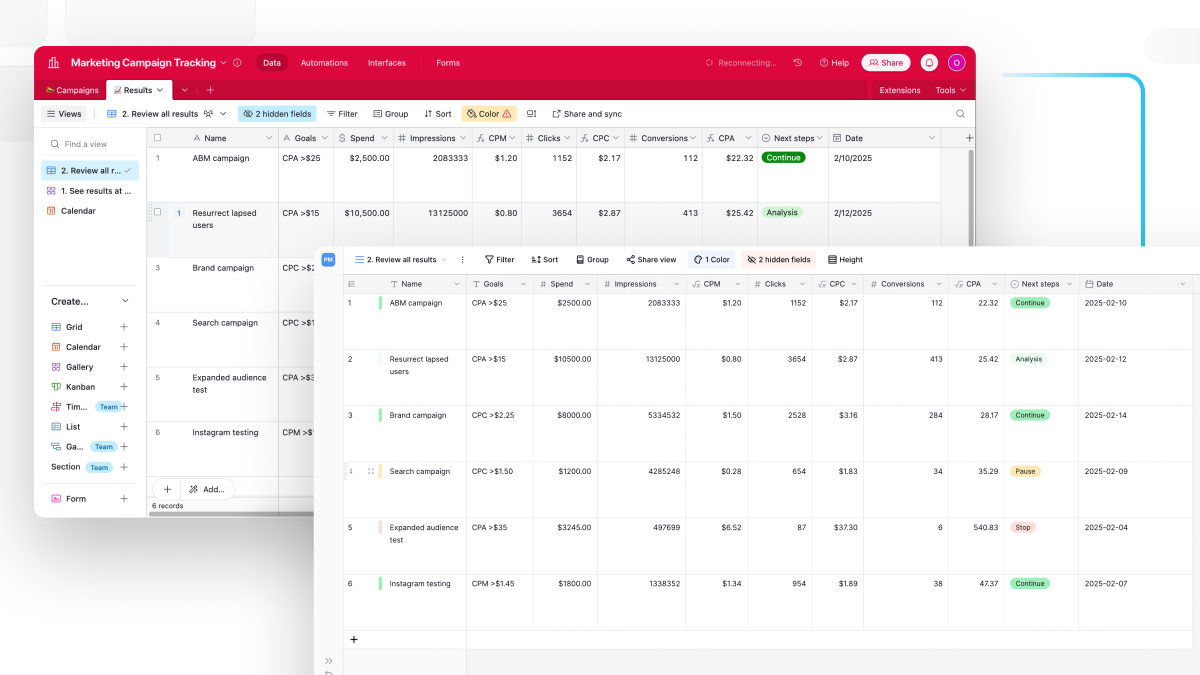
We’ve improved the Airtable import experience to handle more of the links users commonly provide and make import errors easier to understand.
You can now import data from a publicly shared Airtable view, so you don’t need to provide the entire base when you only want to bring over the data available in a shared view.
We’ve also improved error messages for Airtable bases that require authentication or links that aren’t valid.
To import from Airtable, go to your workspace homepage, click + Add new → Database, and select Import from Airtable.
👉 Learn more about importing from Airtable
Application Builder external-user limits
With Baserow 2.4, the Application Builder external-user limit becomes a hard limit.
The limit is 500 external application users. On Baserow Cloud, the limit applies per workspace across all published applications. For self-hosted Baserow, it applies per instance across all published applications.
You’ll receive an in-app notification when you reach 80% of the limit and another when you reach 100%. After reaching the limit, you’ll have a 7-day grace period to increase it. After that, new external users won’t be able to sign in until the limit is increased. Existing external users and their accounts aren’t removed.
👉 Read the docs about usage limitations
Additional improvements
We’ve also included a variety of smaller improvements across Baserow:
Database Builder
- Add images to Rich text fields. You can upload multiple images at once, insert them into your content, and copy or delete them as needed.
- Copy a view’s configuration to another view.
- Add rich content and links to field descriptions in forms.
- Remember whether Comments or History was last open in the row editor.
- See when anonymous visitors are viewing a public grid view.
Application Builder
- Configure responsive breakpoints for different device sizes.
- Use Markdown in more element properties.
- Preview applications from a separate URL for improved security.
- Use grouped and summarized data.
Administration
- Replay the guided tour when you want to revisit the onboarding experience.
- Improved handling of public views and forms, including abuse reporting.
- Staff-only tools to find and manage database views.
- Improved onboarding suggestions for finding relevant databases and workflows.
What this means for you
With Baserow 2.4, you can:
- Turn database rows into actionable buttons that trigger one or multiple actions
- Build charts directly in your applications without custom code
- Create looping workflows that repeat until a condition is no longer met
- Automate processes triggered by incoming emails
- Return responses from workflows and stop running workflows when needed
- Choose and manage the AI providers and models used across your workspace
- Organize grouped data and build more flexible dashboards
- Control who can edit specific fields
- Import data from publicly shared Airtable views
- Track previous Data Sync runs and their status
- Get back to recently used databases, applications, views, and dashboards faster
What’s next
Next, we’re expanding workflow automation with more actions, triggers, and integrations, and introducing more powerful AI capabilities. We’re also working on new Database Builder features, including de-duplication and search and replace.
Baserow 2.4 adds Button fields, Graph elements, workflow automation, AI provider management, improved Group By views, and 30+ more updates.

Discover how Airtable and Baserow compare in features, flexibility, speed, and scalability. Compare pricing plans and hidden costs to make an informed decision!

Explore the best open-source software alternatives to proprietary products. Discover OSS tools, licenses, and use cases with our updated directory.