
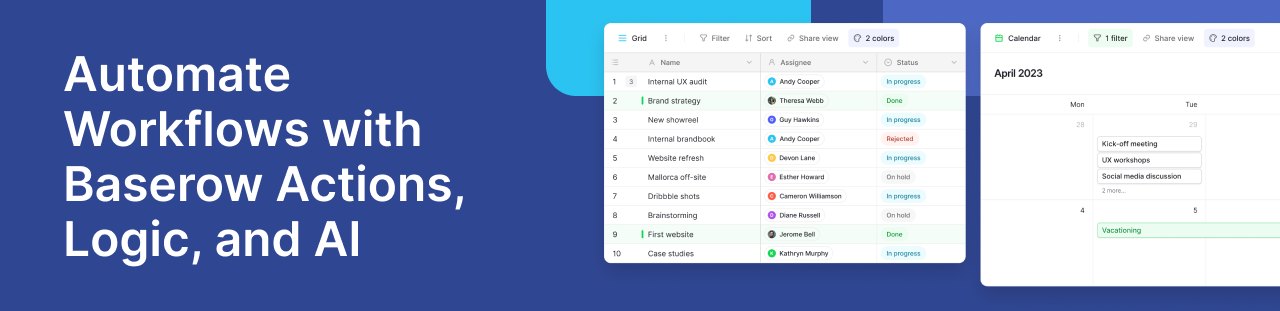
If you are currently managing your work in Excel, Smartsheet, or Airtable, you likely spend a significant portion of your week manually updating statuses, copying data between tools, or sending repetitive email updates. Baserow workflow actions are designed to eliminate this manual work by turning static databases into dynamic, automated processes.
Once a workflow is initiated by a trigger, actions take over. These are the core working units of your automation that execute sequentially to manipulate data, apply logic, or communicate with external platforms; all without requiring you to write any code.
How workflow actions process your data
Every action in your workflow can access the data generated by the steps before it. For example, if your trigger captures a new form submission, your first action can use that specific customer’s name to create a new database row, and your second action can use their email address to send a personalized welcome message.
Because actions build on each other, Baserow requires you to test each node sequentially while in Draft mode. This ensures your data maps correctly before you publish the automation to your live workspace.
Managing data with native database actions
Baserow provides comprehensive native actions to give you complete control over your database records:
- Create, Update, and Delete rows: Automatically add new records, modify existing fields (like changing a status to “Complete”), or permanently clean up obsolete data.
- Get a single row or List multiple rows: Look up a specific record to use its data later in the workflow, or pull a batch of records (like a list of all overdue tasks) based on specific filter criteria.
- Summarize fields: Calculate aggregate statistics, such as the total monthly revenue or the average customer rating, without needing to retrieve every individual record.
Controlling automation flow with advanced logic
For more complex processes, you can dictate exactly how and when certain actions run using workflow control nodes.
Routers (Conditional branching)
Routers apply “if-this-then-that” logic to split your workflow into different paths. For instance, you can create a router that checks the value of a newly submitted ticket. If the priority is “High,” it routes the workflow to send an SMS to a manager. If the priority is “Low,” it routes the data to simply update a dashboard.
Iterators (Loops)
Iterators allow you to process bulk actions one by one. If you use a “List multiple rows” action to find 50 pending invoices, you can pass that list into an Iterator. The Iterator will loop through the list and execute nested actions—such as sending a payment reminder email—for each individual invoice.
Connecting external apps and AI integrations
Your data does not have to live in isolation. Baserow actions can push and pull information across your entire tech stack:
- Send HTTP requests: Connect to thousands of external APIs or trigger downstream automations in platforms like Zapier and Make.
- Native communication: Automatically send custom Slack channel messages or format HTML emails using your own SMTP server.
- AI Prompts: Connect to generative AI models directly within your workflow. You can automatically map database fields to an AI prompt to summarize long text, translate languages, or categorize customer feedback on the fly.
Frequently asked questions
How many actions can I add to a single automated workflow?
You can add multiple actions to a single workflow. They will always execute sequentially from top to bottom in the exact order they appear in your configuration. While there is no strict limit, it is best practice to keep workflows focused for optimal performance.
Can a workflow action use data from multiple previous automation steps?
Yes. Any data successfully generated by a tested node is available to all subsequent actions. For example, a single “Send email” action can pull a customer’s name from the trigger node and an inventory count from a previous “Get single row” action.
What is the difference between getting a single row and listing multiple rows?
The “Get single row” action returns exactly one record as an object, which is useful for looking up a specific detail. The “List multiple rows” action returns a collection of multiple records based on your filters, which is typically used for batch operations or looping through data.
How do I update multiple database rows at once using automation?
To update multiple records, you should combine three actions: First, use List multiple rows to find the records you want to change. Second, add an Iterator node and set its source to that list. Finally, place an Update a row action inside the Iterator to modify each record one by one.
What happens if a workflow action fails during execution?
If an action fails, the workflow stops immediately at that specific node and does not execute any subsequent steps. The failure, along with specific error details, is logged in your automation’s History tab so you can troubleshoot the configuration.
Can I use my database information in an AI prompt?
Yes. Using the AI Prompt action, you can write specific instructions (e.g., “Summarize this feedback:”) and dynamically insert data fields from your trigger or previous actions directly into the prompt. The AI will process the specific row data and output the result.
Learn more about available action types, how to configure them, and how to control workflow logic using routers and iterators.

Baserow 2.4 adds Button fields, Graph elements, workflow automation, AI provider management, improved Group By views, and 30+ more updates.

Discover how Airtable and Baserow compare in features, flexibility, speed, and scalability. Compare pricing plans and hidden costs to make an informed decision!

Explore the best open-source software alternatives to proprietary products. Discover OSS tools, licenses, and use cases with our updated directory.