
TL;DR
- Airtable exports data as a CSV file, not an Excel workbook.
- Open the downloaded CSV in Microsoft Excel and save it as an .xlsx file.
- Use filtered views to reduce manual exports and export only the records you need.
- Moving from Airtable? Baserow’s built-in Airtable importer lets you skip CSV imports while giving you full data ownership, self-hosting, and transparent pricing.
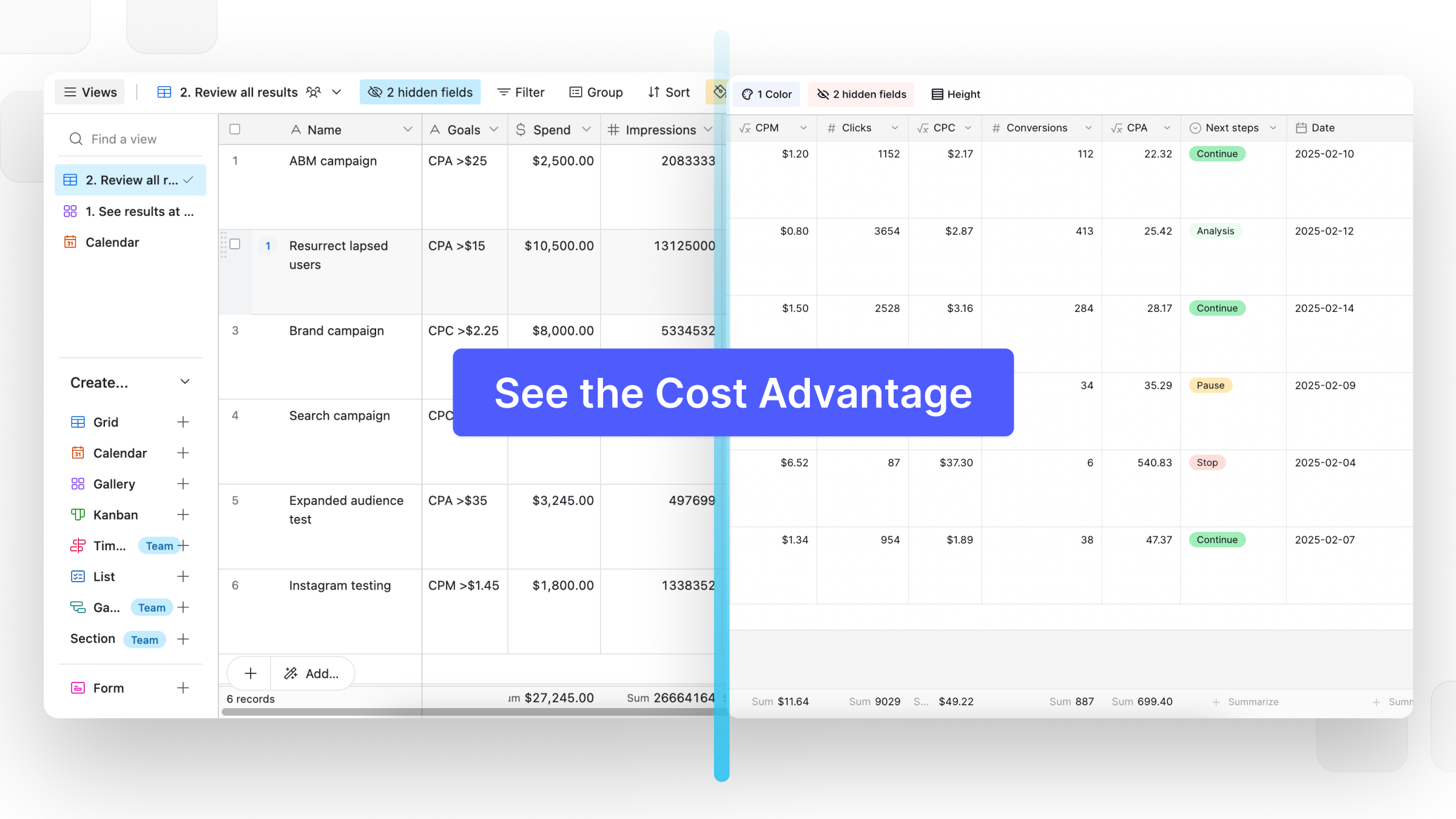
Need to export Airtable data into Excel? While Airtable doesn’t support direct Excel (.xlsx) exports, you can download a CSV and open it in Microsoft Excel in just a few clicks. Whether you need to export Airtable for reporting, backups, or migration, this guide shows you how to quickly export to Excel in just a few simple steps.
Why export Airtable to Excel?
There are many reasons for exporting Airtable data to Excel. You may need to share Excel files, analyze data into Excel, create backups, or import data into another business application. Many teams also continue to work with Airtable while using Excel or Google Sheets for reporting.
How to export Airtable to Excel
Follow these steps to export Airtable and open your data in Excel.
Step 1: Open your Airtable base
Open the base that contains the table you want to export.
If your base contains multiple tables, select the one you want to download.
Step 2: Choose the view you want to export
Airtable exports the records shown in your current view.
Before exporting, consider:
- Applying filters to export only the records you need.
- Hiding columns that shouldn’t be included.
- Sorting your data for easier analysis in Excel.
Preparing your view beforehand helps reduce unnecessary editing later.
Step 3: Download the CSV
Open the view menu and select Download CSV.
Airtable generates a CSV file containing the visible records and fields from your current view, making it easy to export your data into Excel.
Step 4: Open the CSV in Excel
Locate the downloaded file and open it in Microsoft Excel.
Excel automatically imports CSV files, allowing you to filter, sort, analyze, and edit your data just like any other spreadsheet.
Step 5: Save as an Excel workbook
If you need an actual Excel file:
- Click File → Save As.
- Select Excel Workbook (.xlsx).
- Save the file.
Your Airtable data is now available as an Excel workbook.
Looking to migrate instead of exporting?
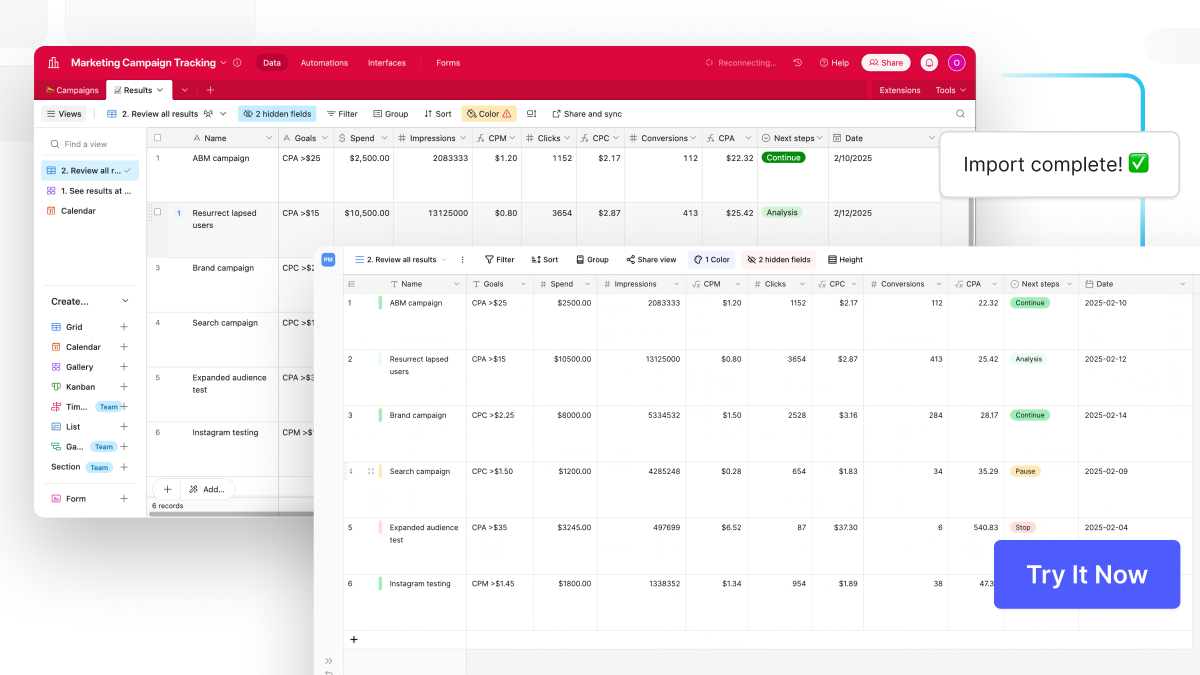
If you’re exporting data from Airtable because you’re planning to switch platforms, repeatedly downloading CSV files isn’t the only option.
Baserow’s built-in Airtable importer lets you import your Airtable bases in just a few clicks, eliminating manual CSV migrations. Unlike Airtable, Baserow is open source, offers self-hosting, gives you full ownership of your data, and has transparent pricing — so you’re never locked into a single deployment model. You can continue to export your data whenever you need it while building on a platform designed for flexibility.
Frequently asked questions
Can Airtable export directly to Excel?
No. Airtable exports data as a CSV file. You can open it in Excel and save it as an Excel workbook (.xlsx).
Can I export only selected records?
Yes. Airtable exports the current view, so you can use filters and hidden fields to export only the records you need.
Can I export multiple tables at once?
No. Each table must be exported separately unless you use the Airtable API or another automation solution.
Can I automate Airtable exports?
Yes. You can use the Airtable API or an Airtable automation platform like Zapier or Make to automate recurring exports instead of relying on manual exports.
What’s the easiest way to migrate from Airtable?
If you’re moving to another platform, using Baserow’s Airtable importer is much faster than exporting CSV files and importing each table manually. It imports your Airtable data directly, helping you get started in minutes.
If you’re comparing platforms, you might also find these guides helpful:

Baserow 2.4 adds Button fields, Graph elements, workflow automation, AI provider management, improved Group By views, and 30+ more updates.

Discover how Airtable and Baserow compare in features, flexibility, speed, and scalability. Compare pricing plans and hidden costs to make an informed decision!

Explore the best open-source software alternatives to proprietary products. Discover OSS tools, licenses, and use cases with our updated directory.