
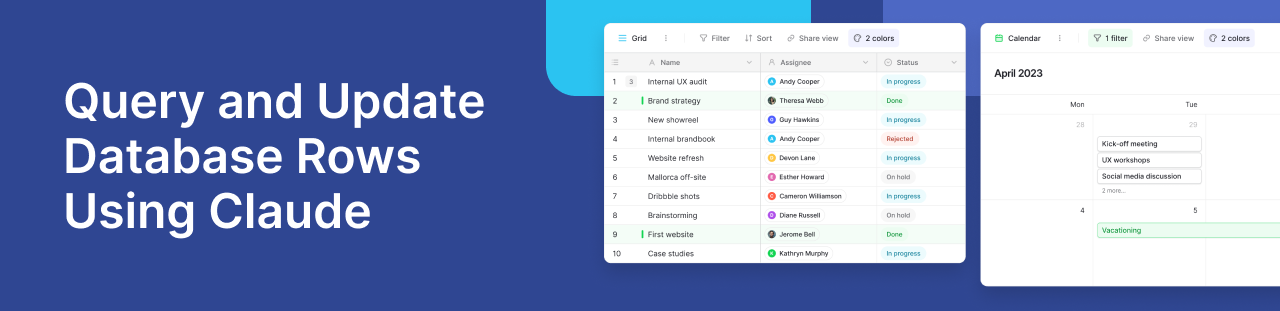
Managing databases and spreadsheets often means dealing with rigid formulas, building custom API connections, or setting up complex multi-step automation pipelines just to keep your data moving. But what if you could simply talk to your data instead?
By establishing a direct bridge between your LLM and your data workspace, you can use everyday language to find records, update project statuses, or add new entries instantly. Here is a look at how this integration works and a step-by-step overview of how to set it up.
Learn more about how to natively integrate Baserow with Claude Desktop using the Model Context Protocol (MCP).
How direct AI-to-database connection works
Traditionally, connecting an AI tool to a spreadsheet or relational database required you to manually map out every single field or hardcode your database schema directly into the LLM context. If you changed a column name, the entire connection would break.
A native integration via the Model Context Protocol (MCP) completely changes this workflow. Instead of relying on rigid, one-to-one middleware mappings, the connection operates through a dynamic process:
- Schema Introspection: Upon connection, the database securely introduces its structure; including tables, column names, and data types; to Claude.
- Real-Time Adaptability: Claude reads this schema dynamically. Whether your column is named
Asset ID,Serial_No, orDevice Tag, the AI understands the context automatically without manual configuration. - Natural Language Execution: When you type a prompt, Claude translates your natural language request into precise API calls to create, read, update, or delete records in real-time.
This means you can alter your database structure at any time without ever needing to update code or rebuild an integration workflow.
Step-by-step guide to querying and updating data with Claude
Setting up a direct connection requires no custom middleware or complex webhooks. You simply need to generate a secure gateway and introduce it to your AI desktop client.
Learn more about how to natively integrate Baserow with Claude Desktop using the Model Context Protocol (MCP).
Step 1: Generate a secure access route in your database
To begin, you need to create a dedicated, secure endpoint that allows an external AI application to interact with your workspace. In Baserow, this is handled through the MCP Server settings.
By creating a new endpoint and assigning it to a target workspace, the platform generates a unique MCP URL. This URL serves as both your connection line and your authentication credential, granting programmatic access to safely read and modify data within that specific workspace.
Note: Because this URL acts as a high-privilege secret, it should be treated with the same security as an API key. Avoid sharing it publicly or putting it in version control.
Step 2: Link Claude Desktop to your data workspace
With your access route generated, you need to point your Claude Desktop client toward the new endpoint. This is done by modifying Claude’s local environment configuration file (claude_desktop_config.json).
By appending a dedicated server block that references your unique MCP URL, Claude learns exactly where to route its data requests. Once you save the configuration file and restart Claude Desktop, the secure bridge initializes automatically.
Step 3: Use natural language prompts to modify rows
Now that the server connection is live, you can interact with your data using standard conversational prompts. Because Claude evaluates your table structure dynamically, you do not need to instruct it on how to find a row; you simply ask for what you need.
- To read data: “Check our database and tell me which hardware assets are currently assigned to the engineering department.”
- To update rows: “Find the record for John Doe’s laptop, change its status to ‘Under Repair’, and add a note about the battery.”
- To create rows: “Add a new record for a MacBook Pro M3, set the serial number to XYZ789, and mark it as available.”
Best practices for secure AI data management
- Deploy Granular Endpoints: Avoid using a single connection URL for your entire organization. Generate separate endpoints for specific use cases or separate departments to keep your data access tightly controlled and maintain clean audit logs.
- Implement a Preview Strategy: While AI can perform destructive actions like bulk deletions or major status changes, it is best practice to use a two-step prompting approach. Instruct the AI to preview the specific rows it intends to change and wait for your explicit confirmation before executing the update.
- Match Model Capability to Schema Complexity: Dynamic schema mapping relies heavily on logical reasoning. If you are working with large databases, relational tables, or deeply nested structures, ensure you are utilizing a high-parameter model for accurate query translation.
Frequently asked questions
How do I fix Claude saying it can’t find my spreadsheet or table columns?
Claude occasionally needs a manual prompt to trigger its initial schema discovery. If the AI client claims a table is missing or unrecognized, simply prompt it: “Please fetch the current list of tables from the server.” This forces Claude to read the live database structure, cache the column alignment, and execute subsequent queries seamlessly.
Can I bulk update rows in Excel, Airtable, or Baserow using AI without messing up existing records?
Yes, but safety requires a coordinated prompt. To prevent accidental data overwrites on mass updates, always ask the AI to isolate the target data first. For example, tell the AI: “Find all items older than 3 years. Summarize how many records match this description, and wait for my direct approval before changing their status.”
How do I securely connect Claude to multiple database workspaces at the same time?
You do not need to create entirely separate configuration files for different datasets. You can generate a unique MCP URL for each distinct workspace within your database settings. Then, open your configuration file and add multiple distinct server blocks under your settings, giving each workspace a descriptive name (such as "Inventory_Data" or "HR_Tracker"). Claude will automatically route your prompts based on the context of your question.
Is it safe to share my Claude desktop configuration file with my team?
No, you should never share this file or post it to internal communication channels. Because your configuration contains a unique URL tied directly to your personal workspace permissions, sharing the file allows others to modify data under your account name and compromises data governance. Each team member should generate their own unique endpoint in their personal settings.

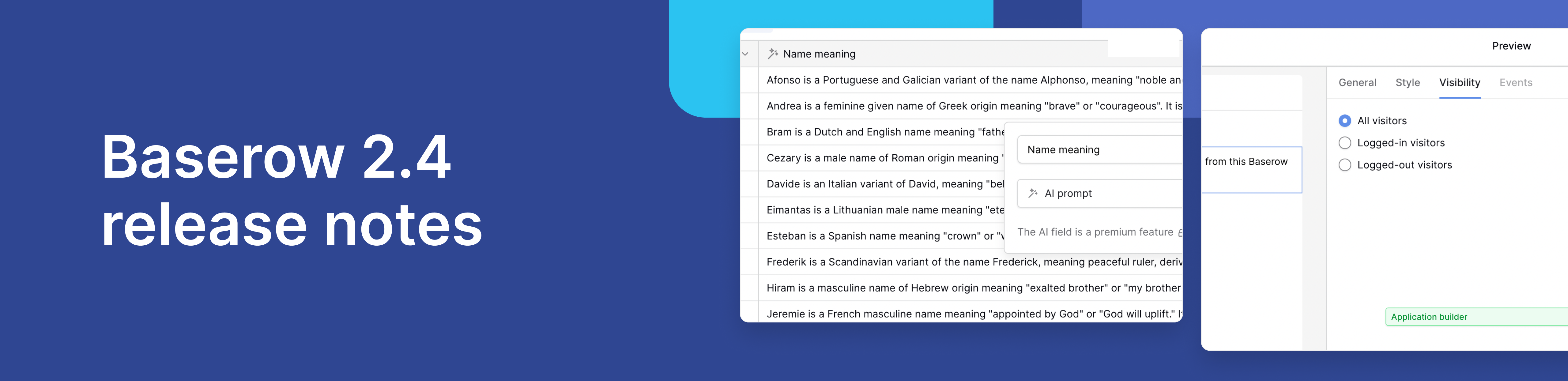
Baserow 2.4 adds Button fields, Graph elements, workflow automation, AI provider management, improved Group By views, and 30+ more updates.

Discover how Airtable and Baserow compare in features, flexibility, speed, and scalability. Compare pricing plans and hidden costs to make an informed decision!

Explore the best open-source software alternatives to proprietary products. Discover OSS tools, licenses, and use cases with our updated directory.