 Docs
DocsConnect Baserow to Claude via Model Context Protocol (MCP)
Baserow’s Model Context Protocol (MCP) Server lets you connect Large Language Models like Claude, Cursor, or Windsurf directly to your workspace. You can create, read, update, and delete data using natural language prompts without writing code or API calls.
This guide covers how to natively integrate Baserow with Claude Desktop using the Model Context Protocol (MCP). By configuring Baserow as an MCP server, you establish a direct, real-time bridge that allows Claude to execute CRUD operations against your workspace using natural language.
Because MCP acts as a standardized translation layer, you do not need to build custom API middleware, configure webhooks, or hardcode your specific database schemas into the LLM context.
Learn more: What is an MCP server?
Available capabilites
- Create rows
- Delete rows
- Get table schema
- List databases
- List table rows
- List tables
- Update rows
How the Integration Works
The core advantage of this integration is its dynamic nature. When you connect Claude to Baserow via MCP, you are not setting up a rigid, one-to-one mapping of fields.
Instead, the architecture works like this:
- Introspection: Upon connection, the MCP server exposes your Baserow workspace schema (tables, column names, and data types) to Claude.
- Dynamic Mapping: Claude reads this schema in real-time. Whether your primary key is named
Asset ID,Device Tag, orSerial_No, Claude understands the structure automatically. - Execution: When a user prompts Claude, the LLM translates the natural language request into precise REST API calls routed through the MCP endpoint to perform the requested Create, Read, Update, or Delete operation.
This means you can swap data sources or alter your Baserow schema at any time without ever needing to update the integration code.
Read more about Fostering a Developer Ecosystem Around MCP Servers
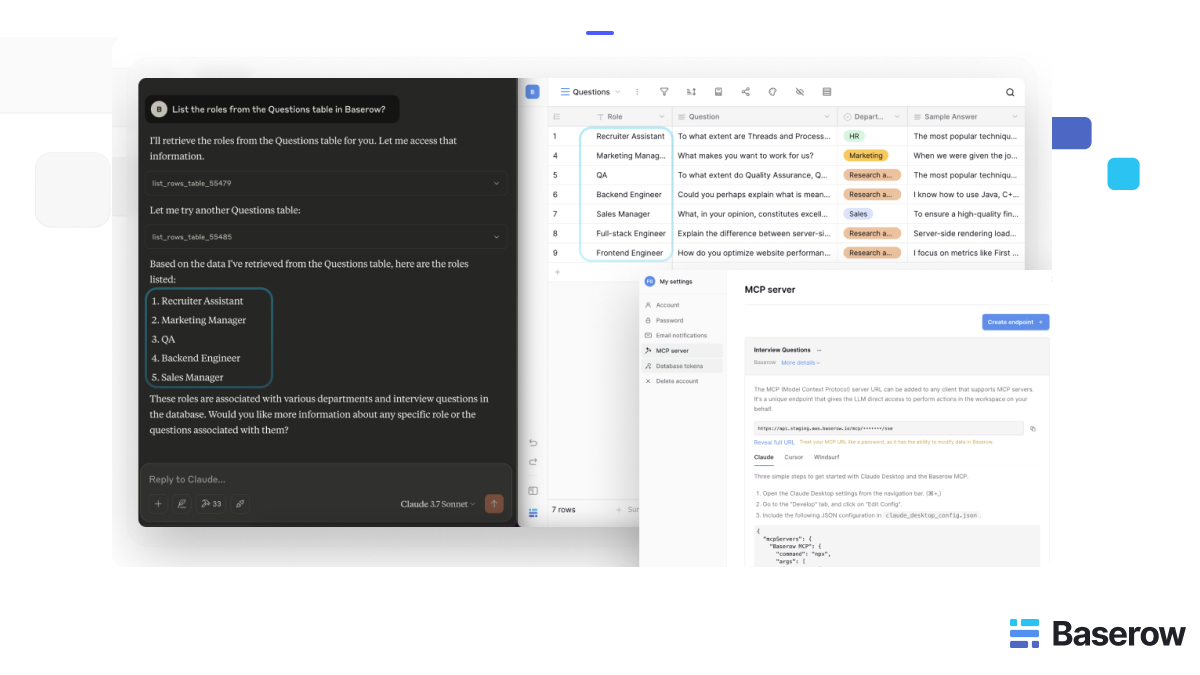
Infrastructure Configuration
To establish the connection, you need to generate a secure access endpoint in Baserow and define it in Claude Desktop’s environment configuration.
Step 1: Generate the Baserow MCP Endpoint
MCP server endpoints can be used to directly integrate with Claude and let the LLM perform actions directly in Baserow.
This endpoint functions as both the connection route and the authentication credential.
- In Baserow, click your workspace name in the top navigation bar.
- Select My Settings > MCP Server.
- Click Create Endpoint.
- Assign a descriptive name (e.g.,
Claude_Desktop_Local) and select the target workspace. - Copy the generated MCP URL.
⚠️ Critical Security Note: Treat your MCP URL strictly as an API Secret. It grants full programmatic access to modify data within the selected workspace. Do not commit this URL to version control or share it across multiple team members. If compromised, revoke and regenerate the endpoint immediately via the Baserow settings.
Step 2: Configure the Claude Desktop Client
You must point Claude Desktop’s local environment to your new Baserow endpoint using the npx mcp-remote command.
-
Open Claude Desktop settings (use
⌘ + ,on Mac). -
Navigate to the Develop tab.
-
Click Edit Config to open the
claude_desktop_config.jsonfile. -
Append the Baserow MCP server block to your configuration file, replacing
"YOUR_MCP_URL_HERE"with your secure endpoint.`{ "mcpServers": { "Baserow MCP": { "command": "npx", "args": [ "mcp-remote", "YOUR_MCP_URL_HERE" ] } } }` -
Save the file and restart Claude Desktop to initialize the server connection.
Enterprise Application: IT Asset Management
Because the MCP server dynamically reads your schema, you can immediately begin querying and updating your existing workflows.
For example, if your organization uses an IT Asset Management template in Baserow to track hardware lifecycle, you do not need to instruct Claude on how to find a device. You simply rely on the established connection to execute operations via standard prompts.
- Read (Querying assignments): “Check the Baserow IT Assets table. What laptop is currently assigned to John Doe, and what is its warranty expiration date?”
- Update (Modifying status): “Update the status of John Doe’s laptop to ‘Under Repair’ and add a note that the battery is expanding.”
- Create (Provisioning): “Add a new record for a MacBook Pro M3, serial number XYZ789, assign it to the Engineering department, and set the status to ‘Available’.”
In all of these scenarios, Claude uses the MCP bridge to inspect your specific table structure, find the relevant columns (regardless of how you named them), and execute the database changes instantly.
Learn more: MCP server AI integration
Best Practices for Scaling MCP
- Granular Endpoints: Do not use a single MCP URL for your entire organization. Create separate endpoints for different use cases or developers to maintain accurate audit logs and allow for targeted revocation.
- Model Selection: The accuracy of the dynamic schema mapping relies entirely on the reasoning capabilities of the LLM. For production environments or complex database architectures, ensure Claude is utilizing its highest-parameter model for optimal query translation.
- Data Validation: While MCP supports destructive actions (bulk updates/deletes), instruct users to prompt Claude to preview the records it intends to delete before confirming the execution in natural language.
FAQuestions
Claude tells me it cannot see my table, but I know my JSON config is correct. How do I fix this?
Claude sometimes needs a manual nudge to initiate schema introspection. If it claims a table is missing, simply prompt it: “Please fetch the current list of tables from the Baserow MCP server.” Once Claude reads the live schema aloud, it will cache your database structure, and your subsequent queries will work perfectly.
Can I use Claude to bulk update without accidentally wiping my database?
Yes, the MCP bridge translates your natural language into precise bulk API operations. However, for mass updates, always use a two-step prompting strategy. Tell Claude: “Find all laptops older than 4 years. Summarize how many records this affects, and wait for my approval before updating their status to ‘Decommissioned’.” This ensures Claude’s interpretation matches your intent before executing destructive changes.
I manage multiple workspaces in Baserow. How do I connect Claude to both?
You do not need separate configuration files. First, generate a unique MCP URL for each workspace in your Baserow settings. Then, open your claude_desktop_config.json and add multiple server blocks under the "mcpServers" object. Just give them distinct names, like "Baserow IT MCP" and "Baserow HR MCP", each pointing to their respective URLs. Claude will automatically route your prompts to the correct workspace based on context.
Is it safe to share my Claude claude_desktop_config.json file in our team’s Slack so everyone can use the integration?
Absolutely not. Your MCP URL acts as a high-privilege API secret tied to your specific workspace permissions. If you share it, every database action your team takes will be logged under your account, and anyone with the URL has full programmatic access to modify your data. Each team member must generate their own unique MCP endpoint in their personal Baserow settings.
- On this page
- Available capabilites
- How the Integration Works
- Infrastructure Configuration
- Enterprise Application: IT Asset Management
- Best Practices for Scaling MCP
- FAQuestions
- Claude tells me it cannot see my table, but I know my JSON config is correct. How do I fix this?
- Can I use Claude to bulk update without accidentally wiping my database?
- I manage multiple workspaces in Baserow. How do I connect Claude to both?
- Is it safe to share my Claude claude_desktop_config.json file in our team’s Slack so everyone can use the integration?