
Spreadsheet formulas help teams automate calculations, analyze information, and reduce manual work. Whether you’re tracking inventory, managing projects, calculating revenue, or building reports, formulas make it easier to work with large amounts of data.
Most spreadsheet software includes built-in functions that perform calculations automatically. Instead of entering values manually, you can create formulas that update whenever your data changes.
In this guide, you’ll learn:
- What spreadsheet formulas are
- How formulas and functions differ
- How cell references work
- Common spreadsheet formula examples
- Array formulas and advanced calculations
- Business use cases for formulas
- How spreadsheet formulas work in Baserow
What Are Spreadsheet Formulas?
A spreadsheet formula is an expression that performs calculations, evaluates conditions, or manipulates data automatically.
For example, instead of calculating a total manually, a formula can multiply quantity by price and return the result instantly.
Traditional spreadsheets such as Excel and Google Sheets use formulas to:
- Calculate totals
- Calculate averages
- Track budgets
- Analyze sales
- Format dates
- Combine text values
- Check multiple conditions
- Create reports
When source data changes, formulas update automatically.
This reduces manual work and helps prevent errors.
How to Enter Spreadsheet Formulas
Most spreadsheet formulas start with an equal sign (=). The equal sign tells the spreadsheet that you’re entering a formula rather than regular text.
To create a formula:
- Click the selected cell where you want the result to appear.
- Type an equal sign (
=). - Enter your formula or function.
- Press Enter to calculate the result.
For example:
=SUM(A1:A10)
After you press Enter, the spreadsheet calculates the formula and displays the result in the selected cell.
Spreadsheet Formulas vs Functions
Many people confuse formulas and functions.
Although closely related, they are not the same thing.
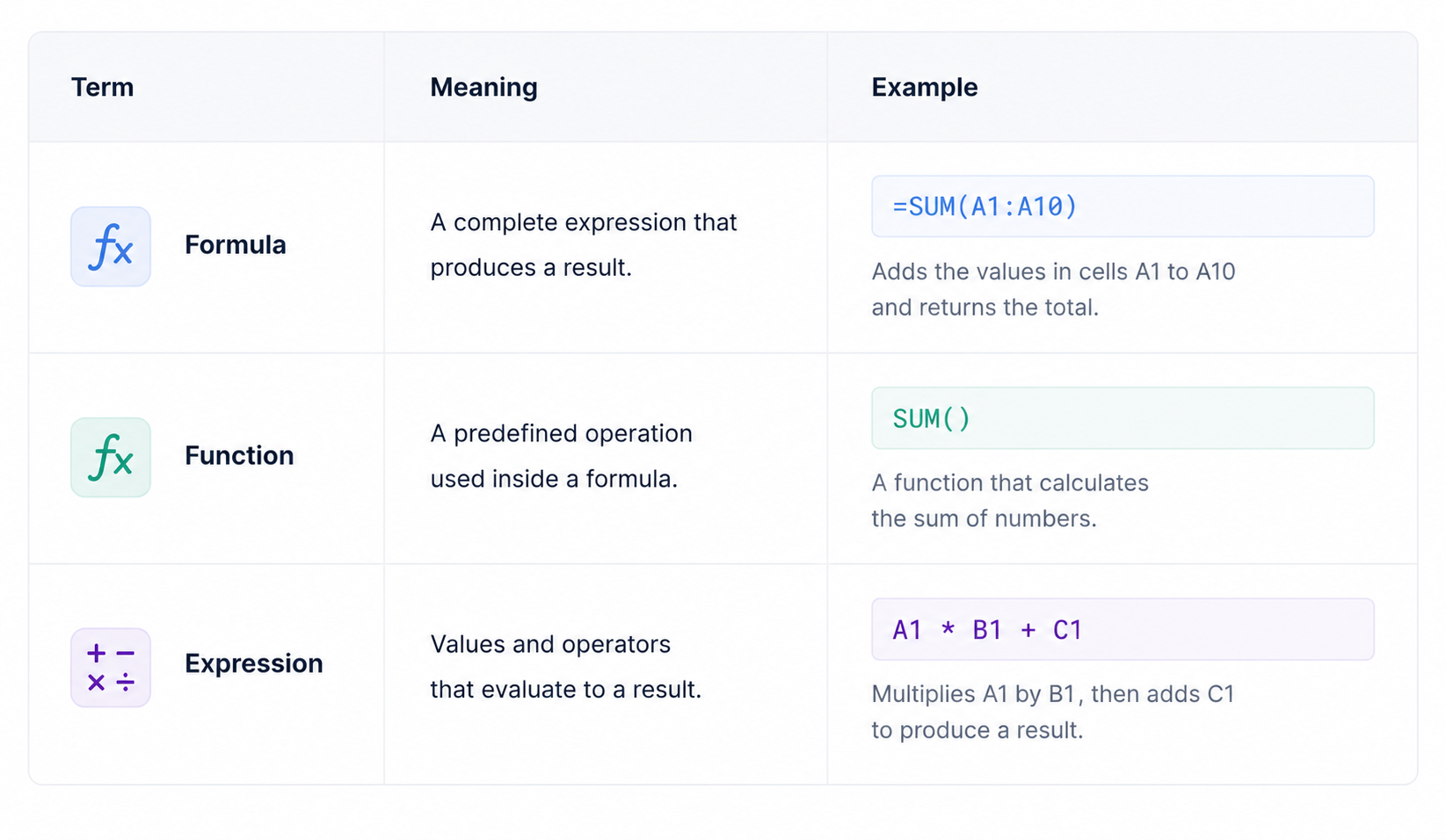
For example:
=SUM(A1:A10)
The entire statement is a formula.
SUM() is the function.
The range A1:A10 is the input.
The function calculates the total of all values inside the selected range of cells.
Understanding Cell References
A cell reference identifies a specific location in a spreadsheet.
Examples include:
A1
B2
C10
A formula can use a cell reference to retrieve data from another location.
Example:
=A1+B1
This formula adds together the values stored in cells A1 and B1.
You can also reference a range of cells:
=SUM(A1:A10)
In this example, the function calculates all values between A1 and A10.
Spreadsheet applications support:
- Relative references
- Absolute references
- Mixed references
Understanding cell references is essential for building reliable spreadsheet formulas.
Cell References vs Baserow Field References
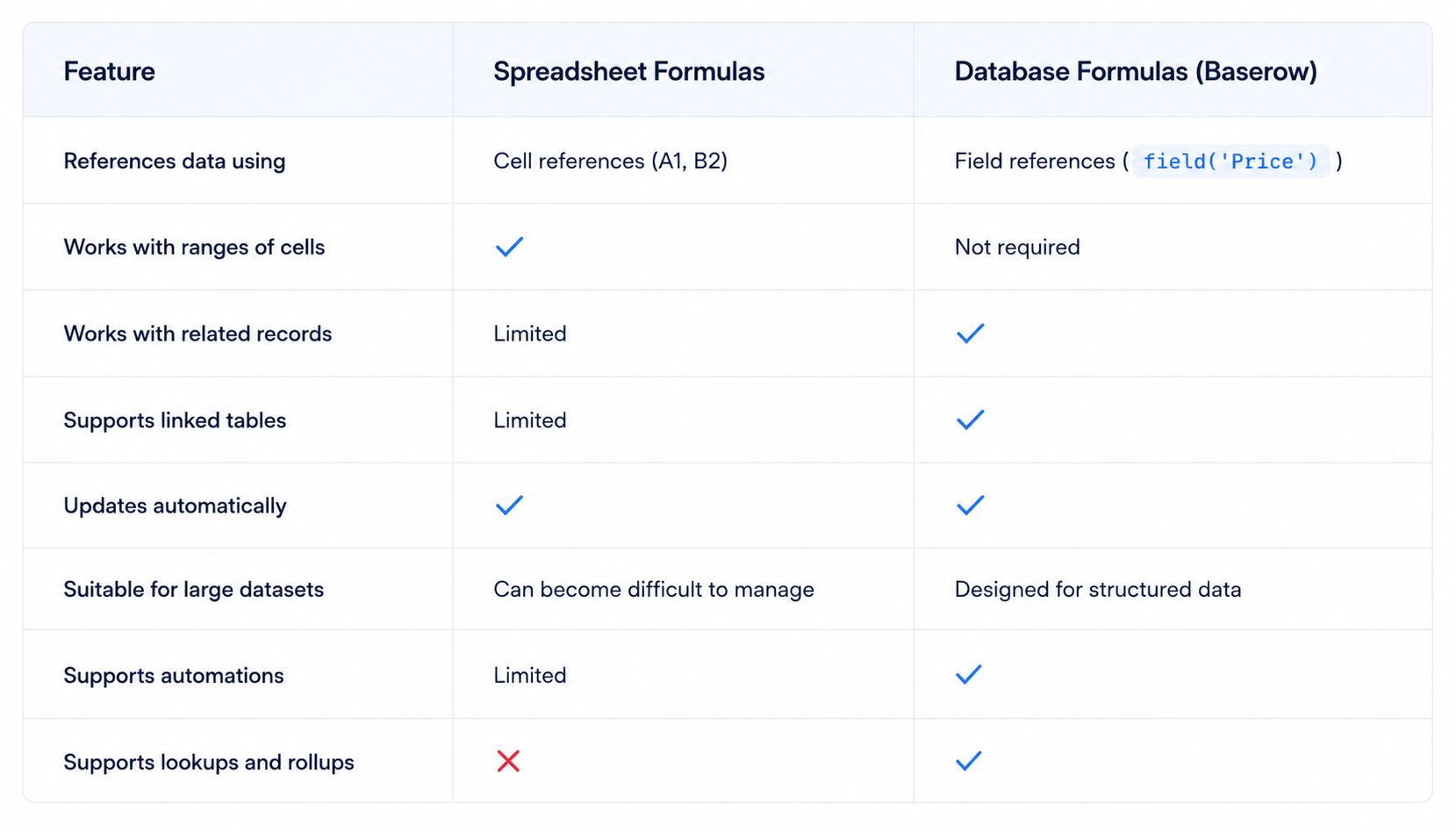
Traditional spreadsheets rely on references such as A1, B2, or C3.
Baserow uses field references instead:
field('Price')
Many teams find field references easier to understand because formulas remain readable even when columns are moved or renamed.
Most Common Spreadsheet Formula Functions
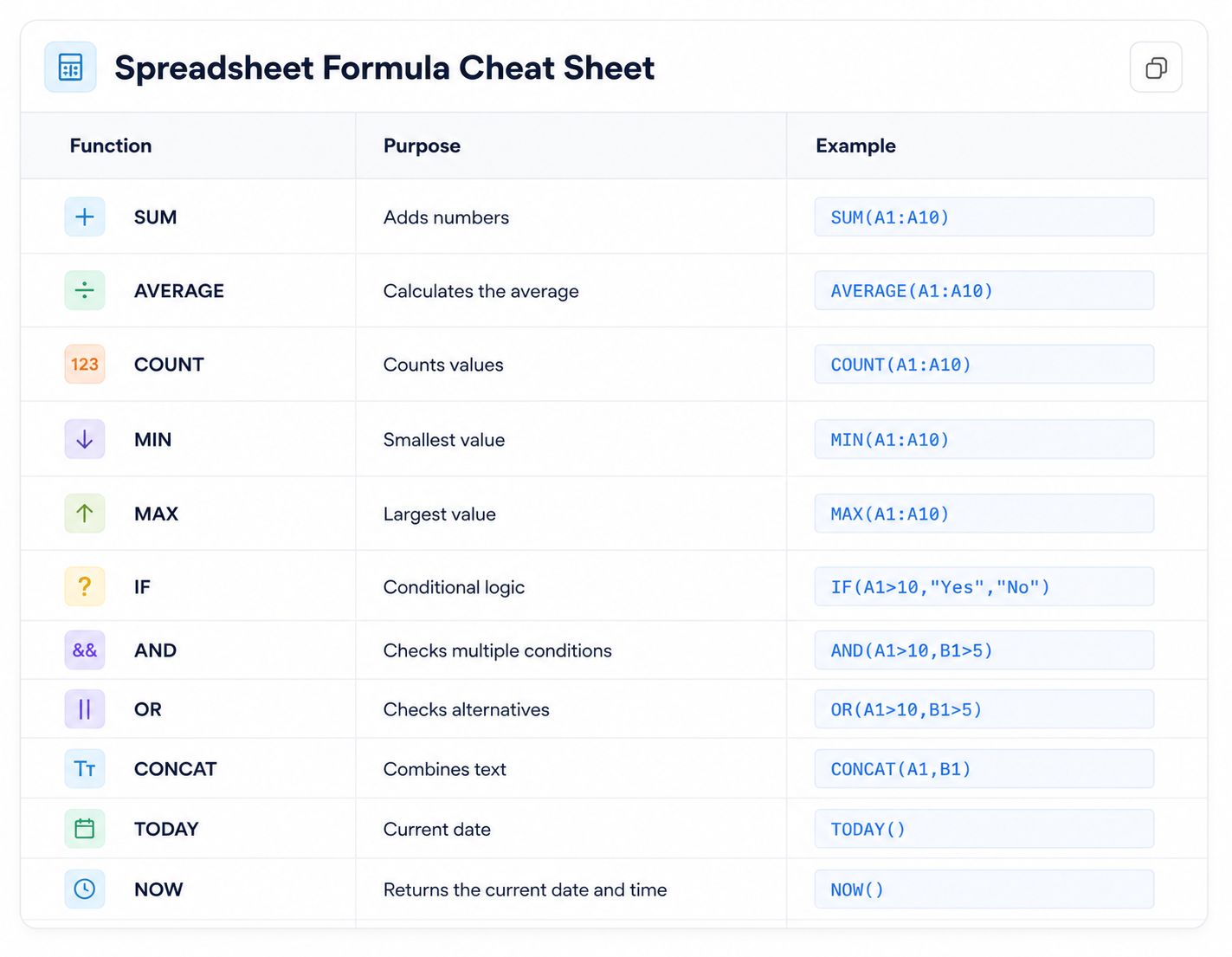
The following functions appear in almost every spreadsheet application.
SUM()
SUM adds numbers together.
Example:
=SUM(A1:A10)
The function returns the number produced by adding every value within the selected range.
Common uses:
- Revenue tracking
- Expense reporting
- Inventory calculations
AVERAGE()
AVERAGE calculates the average value of a set of numbers.
Example:
=AVERAGE(A1:A10)
The function calculates the average by dividing the total by the number of values.
This is useful for:
- Customer satisfaction scores
- Sales performance
- Employee metrics
COUNT()
COUNT returns the number of cells containing numerical values.
Example:
=COUNT(A1:A10)
The function returns the number of entries found in the range.
MIN()
MIN returns the smallest value.
Example:
=MIN(A1:A10)
MAX()
MAX returns the largest value.
Example:
=MAX(A1:A10)
IF()
IF evaluates a condition and returns one value if true and another if false.
Example:
=IF(A1>100,"High","Low")
The formula returns true when the condition is met.
IF functions are commonly used when working with multiple conditions and business rules.
AND()
AND checks whether all conditions are true.
Example:
=AND(A1>10,B1<100)
The function returns true only when every condition is satisfied.
OR()
OR checks whether at least one condition is true.
Example:
=OR(A1>10,B1<100)
The function returns true if any condition is met.
CONCAT()
CONCAT combines text values.
Example:
=CONCAT(A1," ",B1)
This function is useful for creating full names, labels, and unique identifiers.
TODAY()
TODAY returns the current date.
Example:
=TODAY()
NOW()
NOW returns the current date and time.
Example:
=NOW()
This function returns the current date and time whenever the spreadsheet recalculates.
Spreadsheet Formula Examples
Calculate Total Revenue
=Quantity * Price
This formula multiplies the number of units sold by the unit price.
Calculate Discounts
=Price*(1-Discount/100)
Businesses frequently use this formula to calculate discounted prices automatically.
Calculate Profit
=Revenue-Cost
This simple formula helps track profitability.
Calculate Commission
=Sales*0.05
Sales teams often use formulas to calculate commission payments.
Combine Names
=CONCAT(FirstName," ",LastName)
This formula combines separate text fields into a single value.
What Are Array Formulas?
Array formulas perform calculations on multiple values simultaneously.
Instead of working with a single cell reference, array formulas process an entire set of values.
Google Sheets includes the ARRAYFORMULA function:
=ARRAYFORMULA(A1:A10*B1:B10)
Array formulas are useful when:
- Working with large datasets
- Performing calculations across multiple rows
- Automating repetitive calculations
Array Formulas in Baserow
Baserow approaches array formulas differently.
Lookup and Rollup fields often return arrays containing multiple values.
You can then use functions such as:
sum()
count()
avg()
join()
These functions convert arrays into single results.
For example:
sum(lookup('Orders','Total'))
The function returns the number produced by summing all linked order values.
Spreadsheet Formulas for Business Teams
Spreadsheet formulas are useful in almost every department.
Sales Teams
Use formulas to:
- Calculate revenue
- Forecast sales
- Calculate commission
Marketing Teams
Use formulas to:
- Track campaign performance
- Calculate conversion rates
- Measure ROI
Project Management
Use formulas to:
- Calculate project progress
- Monitor deadlines
- Track workloads
Inventory Management
Use formulas to:
- Calculate stock levels
- Monitor reorder points
- Forecast demand
Customer Success
Use formulas to:
- Track customer health scores
- Calculate response times
- Measure retention metrics
💡 Looking for More Formula Examples?
This guide covers the most common spreadsheet formulas and functions. If you’re using Baserow, you can go even further with advanced text, date, mathematical, and logical functions.
Explore our guide to 20 Essential Baserow Formula Functions to discover practical examples you can use to automate calculations, manipulate data, and build smarter workflows.
Spreadsheet Formula Cheat Sheet
Spreadsheet Formulas vs Database Formulas
Traditional spreadsheet formulas work with cells and ranges of cells. Database formulas work with fields, records, and relationships between tables.
Both can perform calculations, manipulate data, and automate repetitive tasks. However, database formulas can work with structured data and related records, making them easier to maintain as datasets grow.
Spreadsheet Formula Example
In a traditional spreadsheet, you might calculate a total using cell references:
=A2*B2
Where:
- A2 contains Quantity
- B2 contains Unit Price
The formula calculates the total for that row.
While simple, formulas can become difficult to manage when columns move or spreadsheets grow.
Baserow Database Formula Example
In Baserow, the same calculation uses field names instead of cell references:
field('Quantity')*field('Unit Price')
This formula is easier to understand because it clearly references the data being used.
If someone moves columns around, the formula continues to work because it references field names rather than positions.
Working With Related Data
This is where database formulas become significantly more powerful than traditional spreadsheet formulas.
Imagine you have:
Orders Table
- Order ID: 1001
- Customer: Acme Ltd
Order Items Table
- Product: Laptop
- Quantity: 2
- Price: $800
In a spreadsheet, connecting these records often requires complex formulas, manual references, or additional sheets.
In Baserow, linked tables make relationships explicit.
You can calculate the total value of all related orders using:
sum(lookup('Orders','Total'))
The formula automatically gathers values from linked records and returns the number representing the combined total.
Better Than Cell References for Growing Data
Cell references work well for small spreadsheets.
However, larger systems often become harder to maintain because formulas depend on specific locations such as:
=SUM(A1:A100)
If columns are reorganized, formulas may need updating.
Database formulas reference the meaning of the data instead:
sum(lookup('Invoices','Amount'))
This makes formulas easier to read, audit, and maintain.
Combining Formulas With Automations
Another advantage of database formulas is that they can be used alongside automations and workflows.
For example, you could calculate an order value:
field('Quantity')*field('Price')
Then automatically trigger a workflow when the total exceeds a certain threshold:
(field('Quantity')*field('Price'))>1000
This allows formulas to become part of a business process rather than simply returning a value in a cell.
Spreadsheet Formulas in Excel, Google Sheets, and Databases
Most people learn spreadsheet formulas in Microsoft Excel or Google Sheets. Whether you’re looking for a formula for a spreadsheet, exploring common Excel spreadsheet formulas, or learning how Google spreadsheet formulas work, the underlying concepts are very similar.
All spreadsheet applications use formulas to:
- Perform calculations
- Analyze data
- Combine text
- Work with dates
- Apply conditional logic
For example:
=SUM(A1:A10)
This formula works similarly across Excel, Google Sheets, and many modern database platforms.
As your datasets become more complex, tools like Baserow extend traditional spreadsheet formulas with linked records, lookups, rollups, and workflow automations.
When to Use Spreadsheet Formulas vs Database Formulas
Spreadsheet formulas are ideal when:
- Working with small datasets
- Creating personal budgets
- Performing quick calculations
- Building temporary reports
Database formulas are often better when:
- Managing business data
- Working with related records
- Tracking inventory
- Building CRM systems
- Managing projects
- Automating workflows
- Scaling beyond a simple spreadsheet
For teams managing large datasets, database formulas provide many of the same calculation capabilities as spreadsheet formulas while adding relationships, automation, and structured data management.
Spreadsheet Formulas in Baserow
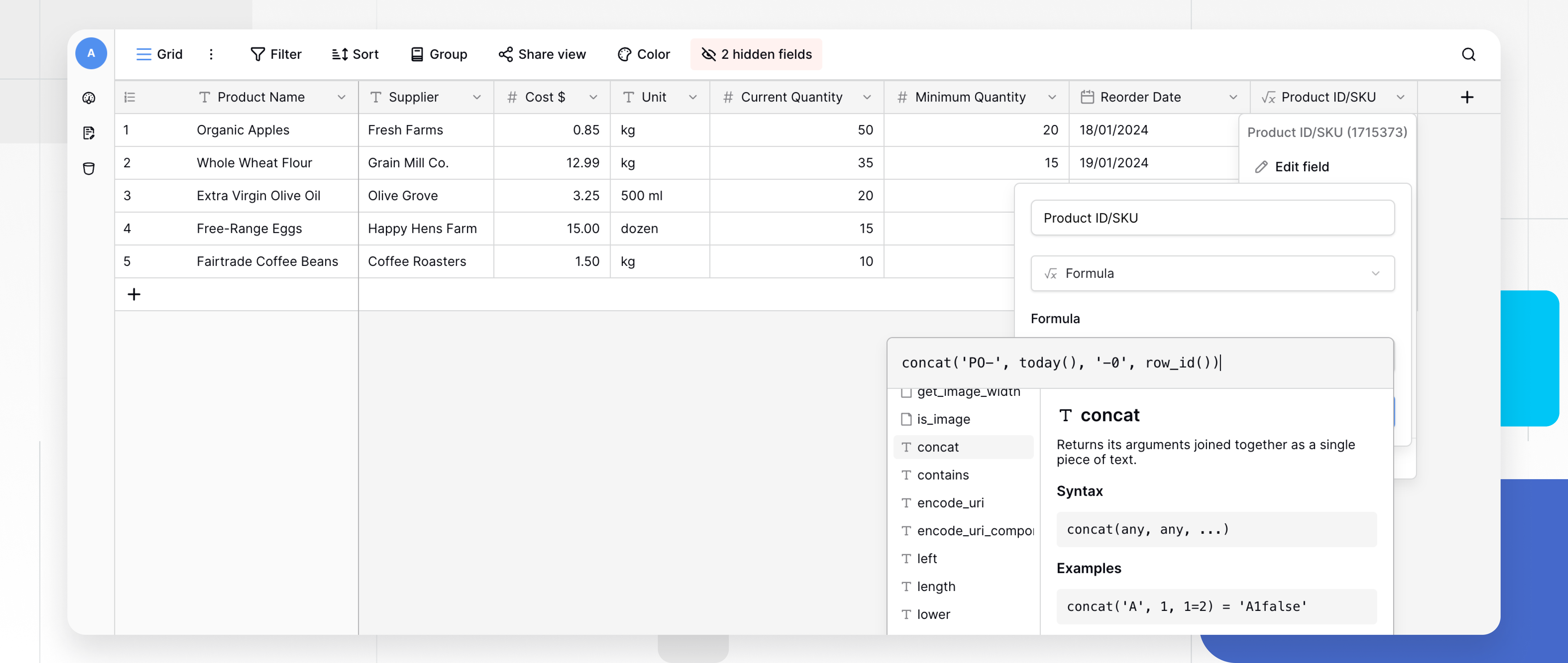
Baserow combines spreadsheet-style formulas with the flexibility of a relational database.
Formula fields automatically calculate values for every record and update whenever source data changes.
You can use formulas to:
- Perform calculations
- Manipulate data
- Format text
- Work with dates
- Analyze linked records
- Build automations
A simple formula looks like this:
field('Current Quantity')*field('Cost')
This formula calculates inventory value automatically.
💡 Try Baserow’s AI Formula Generator
Describe what you want your formula to do, and Baserow will generate the formula for you automatically.
Advanced Formula Examples in Baserow
Conditional Logic
if([Status]='Complete','Done','Pending')
Text Formatting
upper([ProductCode])
Date Calculations
date_diff('day', [StartDate], [EndDate])
Working with Multiple Conditions
if(
and([Quantity]>0, [Price]>100),
'Premium',
'Standard'
)
This example evaluates multiple conditions before returning a result.
Aggregating Linked Records
sum(lookup('Orders','Total'))
The function calculates totals across linked records automatically.
Common Spreadsheet Formula Mistakes
Even experienced spreadsheet users occasionally run into formula errors. Understanding the most common mistakes can help you build more reliable spreadsheets and databases.
Using the Wrong Cell Reference
A common issue occurs when a formula references the wrong cell or range of cells. This can lead to incorrect calculations and inaccurate reports.
For example:
=SUM(A1:A10)
If new rows are added outside the selected range, the formula may not include all values.
In Baserow, formulas use field references instead of cell references, making them easier to maintain as data grows.
Mixing Text and Numbers
Many spreadsheet formulas perform calculations using numeric values. If a field contains text instead of numbers, the formula may return an error or unexpected result.
Always check that fields use the correct data type before creating calculations.
Forgetting to Handle Empty Values
Empty fields can cause issues in calculations and conditional logic.
For example, a formula that divides one value by another may fail when the second value is blank.
Use functions such as:
when_empty([Discount],0)
to provide a default value.
Using Too Many Nested Functions
Complex formulas can become difficult to understand and maintain.
Instead of creating a single formula with many nested functions, consider splitting calculations into multiple formula fields. This makes troubleshooting easier and improves readability.
Ignoring Array Results
Array formulas and lookup fields often return multiple values rather than a single result.
Before using these values in conditions, convert them with aggregation functions such as:
sum()
count()
avg()
join()
This ensures the function returns the expected value.
Not Testing Multiple Conditions
When formulas include multiple conditions, test every possible scenario.
For example:
if(
and([Quantity]>0, [Status]='Active'),
'Available',
'Unavailable'
)
A small logic error can change the result for hundreds of records.
Relying on Manual Updates
One of the biggest advantages of spreadsheet formulas is automation. Instead of updating values manually, create formulas that update automatically whenever source data changes.
This improves accuracy, reduces repetitive work, and helps teams make decisions based on current information.
Why Use Spreadsheet Formulas?
Spreadsheet formulas help teams:
- Save time
- Reduce errors
- Automate calculations
- Standardize reporting
- Improve accuracy
- Scale operations
Instead of updating values manually, formulas keep information current automatically.
Why Use Database Formulas?
While spreadsheet formulas are excellent for calculations and reporting, database formulas offer additional advantages when working with large or connected datasets.
Database formulas allow you to:
- Work with related records across multiple tables
- Reference fields by name instead of cell references
- Build calculations that scale as your data grows
- Aggregate information from linked records using lookups and rollups
- Power automations and workflows with dynamic logic
- Create more maintainable systems for business processes
For example, a spreadsheet formula might calculate the total value of a single order. A database formula can calculate that value while also pulling information from related customers, products, or invoices stored in other tables.
In Baserow, Formula fields combine the flexibility of spreadsheet formulas with the power of a relational database. This makes them ideal for CRM systems, project management tools, inventory tracking, financial reporting, and other business applications where data is connected across multiple tables.
Get Started With Spreadsheet Formulas in Baserow
Spreadsheet formulas are essential for modern data management. They help teams perform calculations, analyze information, track business performance, and automate repetitive work.
While traditional spreadsheets rely on cell references and ranges of cells, Baserow extends formulas with database relationships, linked records, lookups, rollups, workflows, and automations.
Whether you’re calculating inventory values, building reports, or creating advanced business workflows, Baserow’s Formula fields provide a flexible way to work with data while keeping calculations accurate and up to date.


Baserow 2.4 adds Button fields, Graph elements, workflow automation, AI provider management, improved Group By views, and 30+ more updates.

Discover how Airtable and Baserow compare in features, flexibility, speed, and scalability. Compare pricing plans and hidden costs to make an informed decision!

Explore the best open-source software alternatives to proprietary products. Discover OSS tools, licenses, and use cases with our updated directory.