
TL;DR
- Every Excel formula starts with an equal sign (
=). - You can enter formulas directly into a selected cell or use the Formula Bar.
- Press Enter to calculate a formula, or Ctrl + ` to display all formulas in your worksheet.
- Learning just 20 essential Excel formulas can help you automate calculations, analyze data, and work more efficiently.
- If you’re managing relational data across multiple tables, database formulas in tools like Baserow can offer more flexibility than traditional spreadsheets.
Excel formulas are one of the most powerful features in Microsoft Excel. They allow you to automate calculations, analyze data, and update results instantly whenever your spreadsheet changes.
Whether you’re creating a budget, tracking expenses, managing inventory, or building reports, formulas eliminate repetitive manual work and reduce the risk of calculation errors.
In this guide, you’ll learn what Excel formulas are, how to create them, and the 20 formulas every beginner should know.
What are Excel formulas?
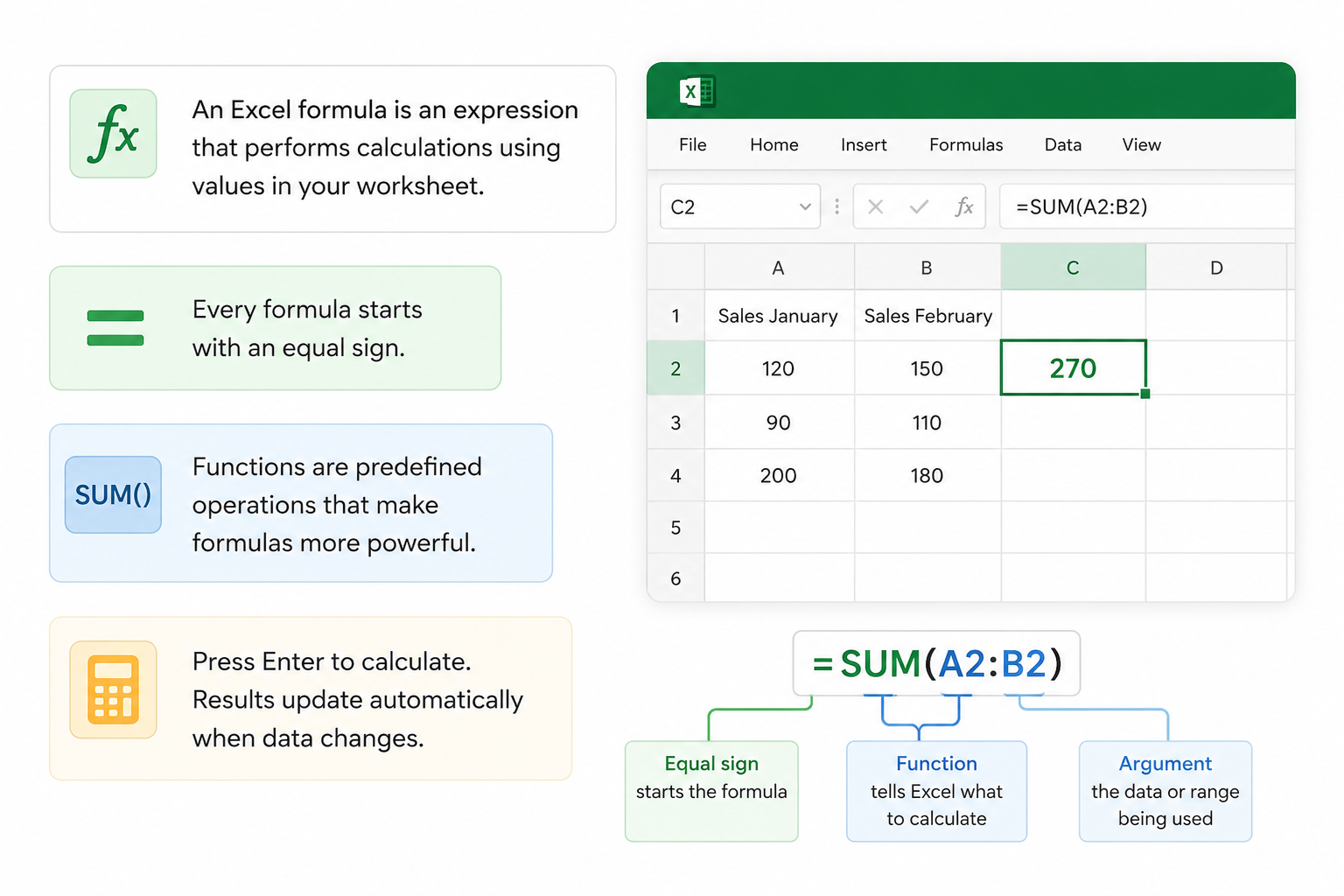
An Excel formula is an expression that performs a calculation using values stored in your worksheet.
Every formula begins with an equal sign (=), which tells Excel that you’re entering a formula instead of plain text.
For example:
=2+2
When you press Enter, Excel calculates the result and displays 4 in the selected cell.
Formulas can be as simple as adding two numbers or as advanced as searching large datasets, combining text, calculating dates, or evaluating multiple conditions.
Many formulas use built-in functions, which are predefined calculations that save you from writing complex expressions yourself.
For example:
=SUM(A1:A10)
This formula calculates the sum of all values between A1 and A10.
How to rnter an Excel formula
Creating formulas in Excel only takes a few steps.
1. Select a cell
Click the selected cell where you want the result to appear.
2. Type an equal sign
Every Excel formula starts with an equal sign (=).
3. Enter your formula
You can perform calculations directly:
=10+20
or reference other cells:
=A2+B2
This formula adds the values stored in cell A2 and cell B2.
4. Press Enter
After typing your formula, press Enter to calculate the result.
Whenever the values in A2 or B2 change, Excel automatically recalculates the formula.
Use the Formula Bar
Instead of typing directly into a cell, you can also use the Formula Bar, located above the worksheet. The Formula Bar makes it easier to edit long or complex formulas because you can see the entire expression in one place.
Useful shortcut: Ctrl + `
When you’re reviewing a worksheet, press Ctrl + ` (grave accent) to switch between displaying calculated results and displaying the formulas themselves. This is one of the quickest ways to troubleshoot or audit your spreadsheet.
20 essential Excel formulas
You don’t need to memorize hundreds of Excel functions. These 20 formulas cover the vast majority of everyday tasks, from calculating totals to finding information and cleaning data.
1. SUM
Calculates the sum of a range of numbers.
=SUM(A1:A10)
2. AVERAGE
Calculates the average value in a range.
=AVERAGE(B2:B20)
3. COUNT
Counts the number of cells containing numbers.
=COUNT(C2:C100)
4. MAX
Returns the highest value in a range.
=MAX(D2:D20)
5. MIN
Returns the smallest value in a range.
=MIN(D2:D20)
6. IF
Returns one value if a condition is true and another if it’s false.
=IF(B2>=100,"Approved","Pending")
7. AND
Checks whether multiple conditions are true.
=AND(A2>0,B2<100)
8. OR
Returns TRUE if at least one condition is met.
=OR(A2="Yes",B2="Yes")
9. IFERROR
Replaces error messages with a value of your choice.
=IFERROR(A2/B2,0)
10. XLOOKUP
Searches for a value and returns matching information from another column.
=XLOOKUP(A2,D2:D100,F2:F100)
11. VLOOKUP
Searches for a value in a table and returns information from another column.
=VLOOKUP(A2,D2:F100,3,FALSE)
Although VLOOKUP is still widely used, Microsoft recommends XLOOKUP for newer spreadsheets because it’s more flexible.
12. INDEX + MATCH
INDEX and MATCH work together to create a flexible lookup formula.
=INDEX(B2:B100,MATCH(E2,A2:A100,0))
Many advanced Excel users prefer this combination because it isn’t limited by column order.
13. SUMIF
Calculates the sum of values that meet a condition.
=SUMIF(A2:A20,"Marketing",B2:B20)
14. COUNTIF
Counts the number of cells that match a condition.
=COUNTIF(B2:B100,"Completed")
15. CONCAT
Combines multiple pieces of text into one value.
=CONCAT(A2," ",B2)
16. LEFT
Extracts characters from the beginning of a text string.
=LEFT(A2,3)
17. RIGHT
Extracts characters from the end of a text string.
=RIGHT(A2,4)
18. TRIM
Removes extra spaces from text.
=TRIM(A2)
19. TODAY
Returns the current date.
=TODAY()
20. NOW
Returns the current date and time.
=NOW()
Excel formula cheat sheet
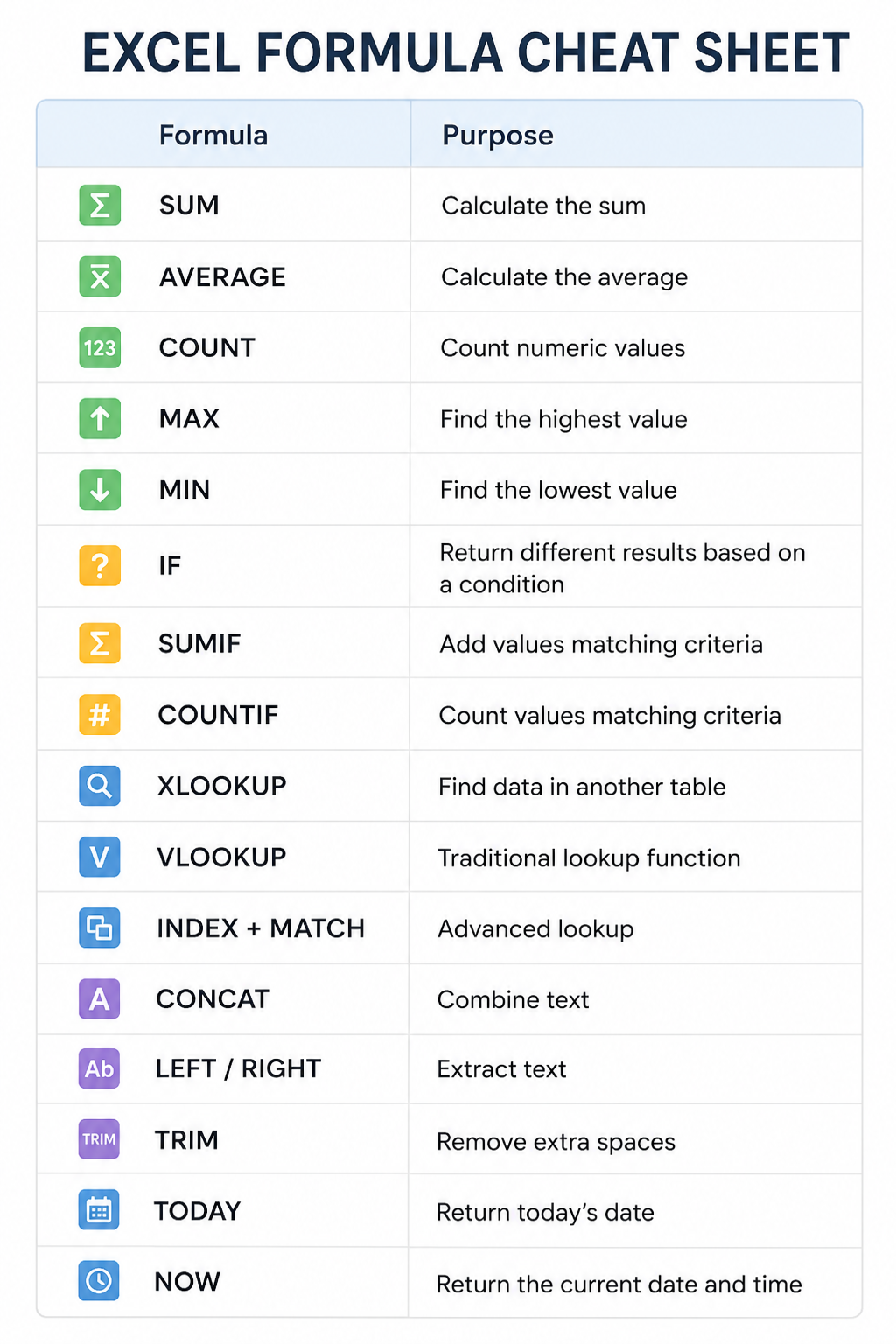
If you’re just getting started with Excel, these are the formulas you’ll use most often.
Excel formulas vs Database formulas
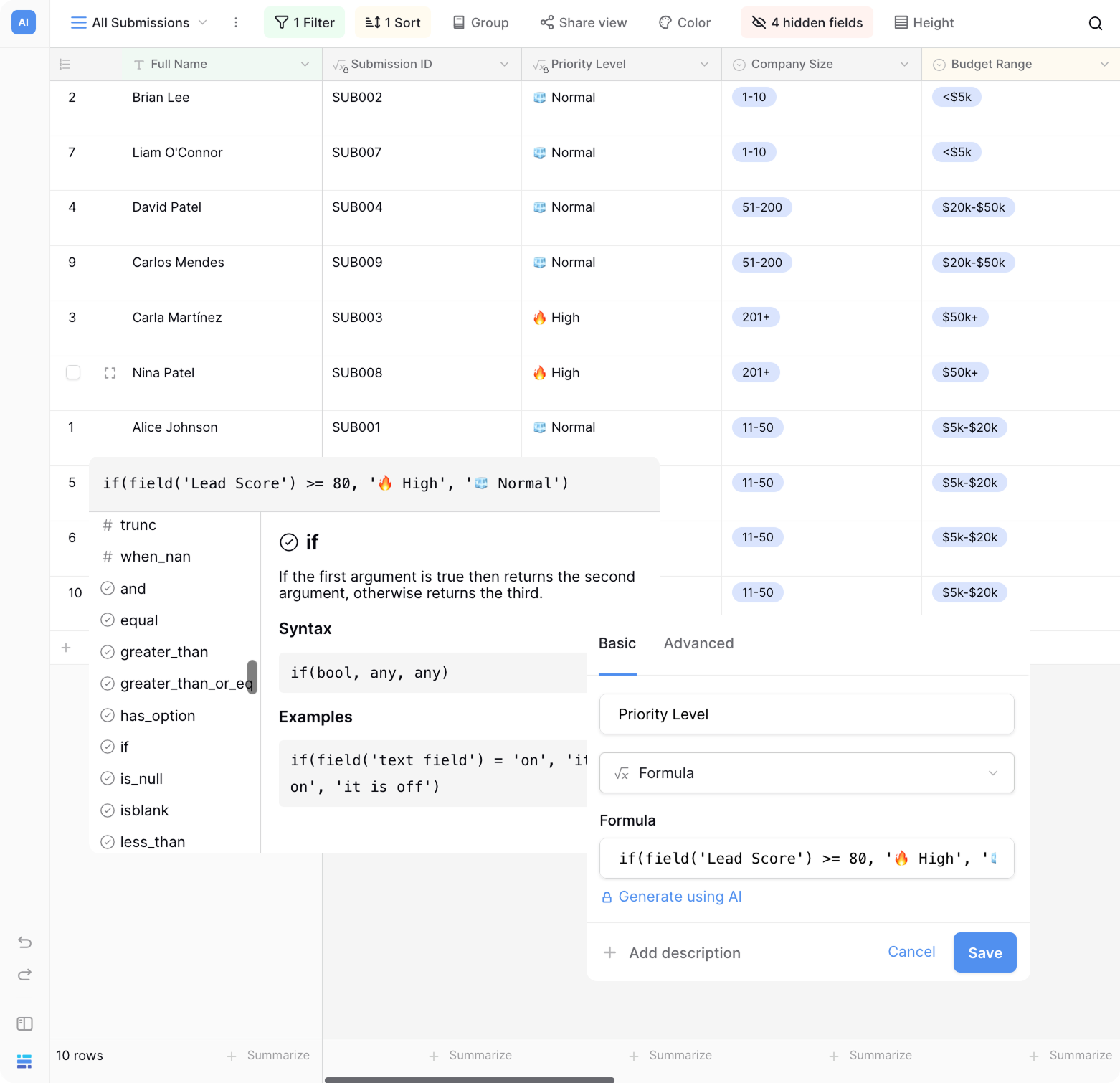
Excel formulas are excellent for calculations within a spreadsheet, but they become harder to manage as your data grows.
Database formulas work differently. Instead of referencing cells like A1 or B2, they reference fields and related records, making formulas easier to read and maintain.
| Excel | Baserow |
|---|---|
| Uses cell references (A1, B2) | Uses field names |
| Best for individual spreadsheets | Best for relational databases |
| Manual organization | Structured data model |
| Great for personal analysis | Built for collaboration and workflows |
If you’re managing projects, CRM data, inventory, or business operations, Baserow combines spreadsheet simplicity with the power of a relational database. Baserow formula field work alongside linked records, lookups, automations, and AI, allowing you to build workflows that go beyond what traditional spreadsheets can offer.
If you’d like to learn more, check out these guides:
Generate Excel formulas with AI
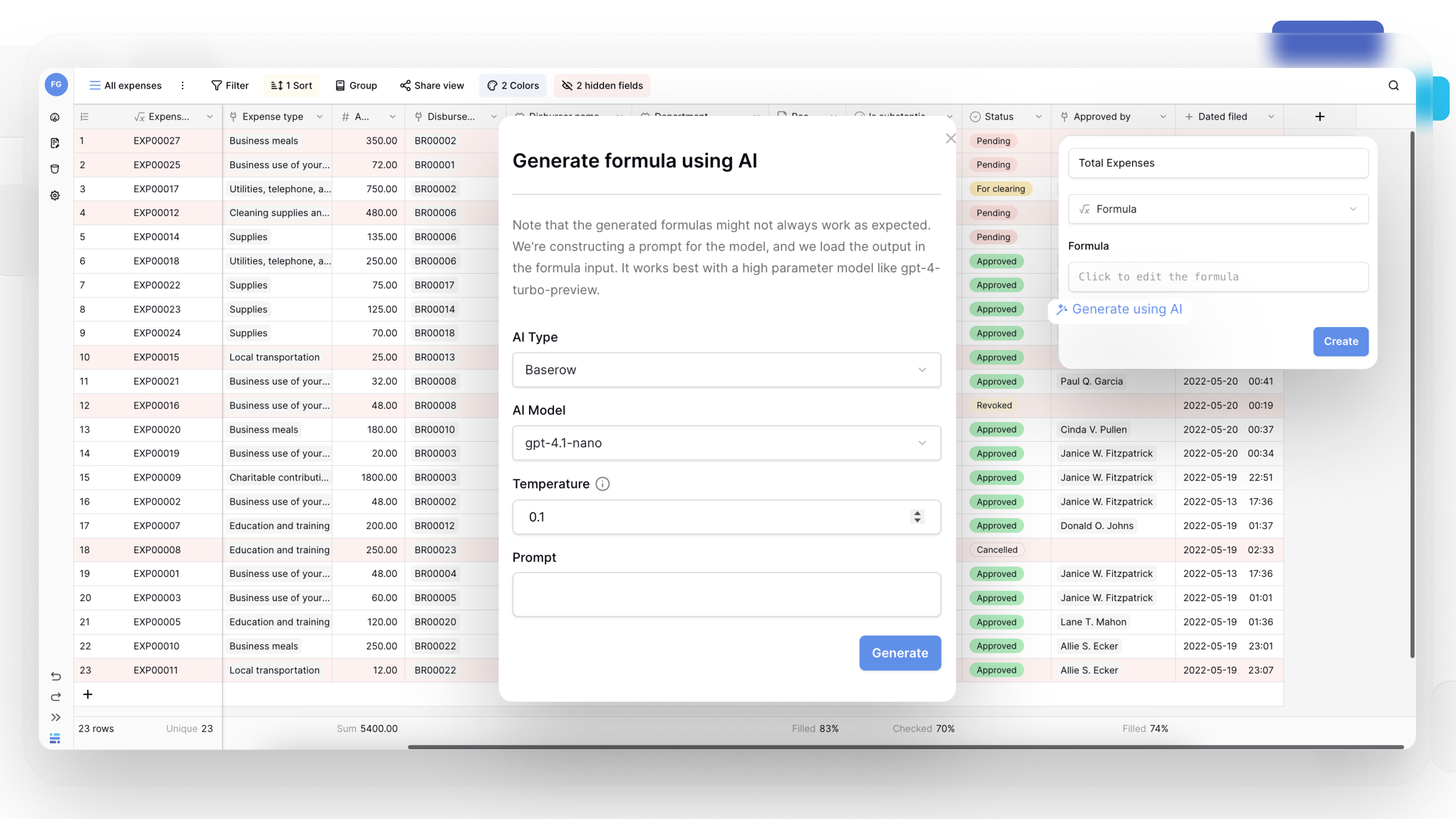
You no longer have to memorize every Excel function.
AI assistants can generate formulas from simple prompts like:
Calculate the total sales for products sold in Europe.
Instead of searching online for the correct syntax, AI can build the formula for you in seconds.
If you’re working with databases instead of spreadsheets, Baserow includes an AI-powered formula generator that creates database formulas from natural language. Simply describe what you want to calculate, and Baserow generates the formula automatically.
Frequently Asked Questions
What is an Excel formula?
An Excel formula is an expression that performs calculations using values in a worksheet. Every formula starts with an equal sign (=).
What is the Formula Bar?
The Formula Bar lets you view, edit, and create formulas. It’s especially useful for longer formulas that don’t fit inside a single cell.
What does Ctrl + ` do in Excel?
Press Ctrl + ` to switch between displaying calculated values and displaying the formulas themselves.
What are the most useful Excel formulas?
The most commonly used formulas include SUM, AVERAGE, IF, XLOOKUP, VLOOKUP, SUMIF, COUNTIF, and CONCAT.
Can AI generate Excel formulas?
Yes. AI tools can create Excel formulas from natural language prompts. Baserow also includes an AI Formula Generator that helps create database formulas without needing to remember complex syntax.
Learning a handful of Excel formulas can dramatically improve the way you work with data. The 20 formulas in this guide cover the most common calculations, lookups, text manipulation, and logical functions you’ll encounter in everyday spreadsheets.
As your datasets become larger and more connected, however, traditional spreadsheets can become difficult to maintain. That’s where Baserow comes in. It combines familiar spreadsheet-style formulas with the flexibility of a relational database, allowing you to build scalable workflows, automate repetitive tasks, and work with linked data—all without giving up the simplicity of formulas.


Baserow 2.4 adds Button fields, Graph elements, workflow automation, AI provider management, improved Group By views, and 30+ more updates.

Discover how Airtable and Baserow compare in features, flexibility, speed, and scalability. Compare pricing plans and hidden costs to make an informed decision!

Explore the best open-source software alternatives to proprietary products. Discover OSS tools, licenses, and use cases with our updated directory.