 Docs
DocsButton field
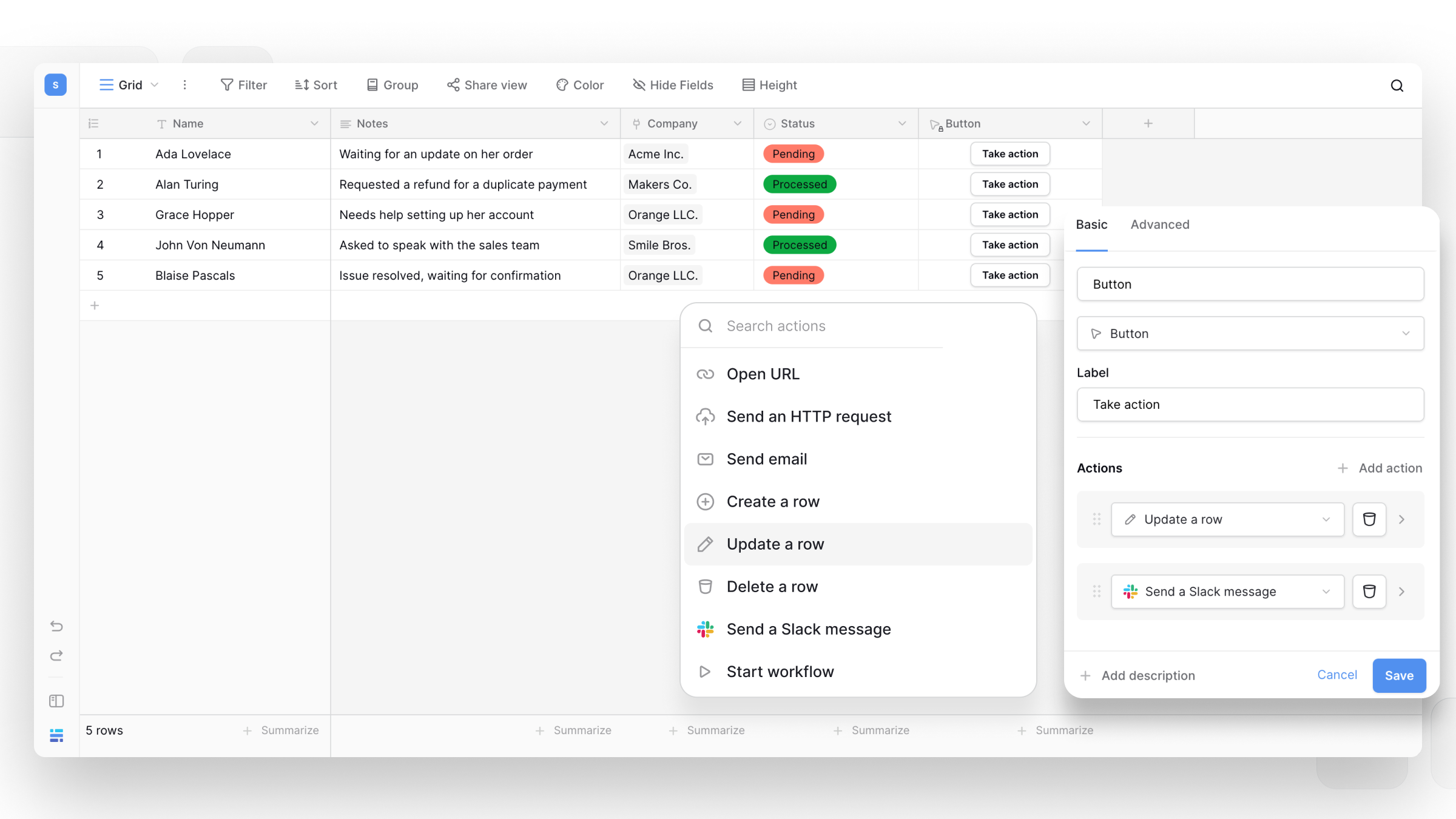
The Baserow Button field lets you add an interactive button to each row and trigger one or more actions directly from your database.
This is useful when you want users to perform common tasks without manually editing a row or opening another application. For example, you can create a button to send an email to a customer, update a record, notify your team in Slack, or start a workflow.
A button can also combine multiple actions and run them in a specific order. Actions can pass information to later actions, allowing you to build simple multi-step processes directly from your table.
Overview
A Button field adds a clickable button to every row in your table.
When someone clicks the button, Baserow runs the actions configured for that button. Depending on the actions you add, a button can:
- Create a row
- Update a row
- Delete a row
- Start a workflow
- Send an HTTP request
- Send an email
- Send a Slack message
- Open a URL
- Run multiple actions in sequence
For example, you could add a ‘Send email’ button to a customer table. When clicked, the button can send an email to the customer using their email address from the current row.
You can also combine actions. For example, a button could send an HTTP request, use information from the response to update the current row, and then send an email.
How to add a Button field
- In your table, click the + button after your last field to add a new field.
- Search for Button and select the Button field type.
- Enter a name for the field.
- Enter the text you want to display on the button in the Label field.
- Under Actions, click Add action.
- Select the action you want the button to perform and configure it.
- Add additional actions if needed.
- Click Create.
After creating the field, each row will contain the button you configured.
- Only Editors and above can click the button. Viewers and commenters see the button disabled.
- The button isn’t shown in form views or public/shared views.
- If an action fails, actions that have already run are not rolled back. The error message indicates which action failed.
Configure button actions
A Button field can contain one or more actions. You can add actions by clicking ‘Add action’ in the Button field configuration.
You can drag actions to change their order or remove an action using the trash icon.
Create a row
The ‘Create a row’ action creates a new row in a selected database and table.
Select the database and table where you want to create the row, then configure the fields you want to populate.
You can use values from the row where the button was clicked. This allows you to copy information from the current row into the new row.
For example, a button in an Orders table could create a new row in an Activity log table containing the order name, customer, and status.
Update a row
The ‘Update a row’ action updates an existing row in a selected database and table.
Select the database and table, then specify the Row ID of the row you want to update. You can use the Row ID from the row where the button was clicked or another value available from a previous action.
Next, select the fields you want to update and provide their new values.
For example, you could create a Mark as shipped button that changes the order’s status to Shipped.
Delete a row
The ‘Delete a row’ action deletes one or more rows from a selected table.
Select the database and table, then provide one or more row IDs to delete. You can use the row ID from the clicked row or an array of row IDs.
Up to 1,000 rows can be deleted in a single action.
Deleted rows are moved to the trash and can be restored from there for a limited time.
Start a workflow
The ‘Start workflow’ action starts a published workflow from a button click.
Only published workflows whose trigger can be started on demand, such as a manual or periodic trigger, can be started using this action.
Select the workflow you want to run. The workflow must be in the same workspace and must not be paused or disabled. If the workflow has unpublished changes, the latest published version is used when the button is clicked.
For example, you could create a Generate report button that starts a workflow that calculates order totals, adds a record to an activity log, and sends an email.
Send an HTTP request
The ‘Send an HTTP request’ action sends a request to an external service or API.
You can configure:
- HTTP method: Choose the request method, such as
GET,POST,PUT, orDELETE. - Endpoint URL: Enter the URL of the API endpoint.
- Query parameters: Add parameters to the request URL.
- Headers: Add HTTP headers such as authorization or content type.
- Body type: Choose
None,JSON,Form multipart, orRaw. - Timeout: Set how long Baserow should wait for the request to complete.
The response from the HTTP request can be used by actions that run later in the same button. For example, you can send an HTTP request, use a value from the response to update a field, and then continue with another action.
Send an email
The ‘Send email’ action lets you send an email directly from a button.
To send emails, select or create an email integration and configure the email settings.
You can configure:
- Integration — Select the email integration that will be used to send the message.
- From email — Enter the email address that the message will be sent from.
- From name — Optional. Enter the name that recipients will see as the sender.
- To emails: Enter one or more recipient addresses. You can also use a value from the clicked row, such as a customer’s email address.
- CC emails: Optionally add CC recipients.
- BCC emails: Optionally add BCC recipients.
- Subject: Enter the email subject. You can include values from the clicked row.
- Body type: Choose the format of the email, such as HTML.
- Body: Write the email content. You can insert values from the clicked row to personalize the message.
For example, in an ‘Orders’ table, you could create an ‘Email customer’ button that sends the customer an email containing their order status and amount.
You can use dynamic values from the clicked row in the email. For example:
Your order {{ Order }} is now {{ Status }}.
The exact fields available depend on the table and row where the button is clicked.
Note: If a button is configured to use the instance SMTP server while instance SMTP is unavailable, the action is marked as needing reconfiguration. An action also needs reconfiguration if its selected SMTP integration is unavailable, has been deleted, has no host, or has no From address.
Note: SMTP integrations with a private host cannot be used by the button unless BASEROW_INTEGRATIONS_ALLOW_PRIVATE_ADDRESS is enabled.
Send a Slack message
The ‘Send a Slack message’ action sends a message to a Slack channel.
To use this action, you first need to configure a Slack integration. Once the integration is available, select it, enter the destination channel, and write the message you want to send.
You can use values from the clicked row in the message.
For example, a ‘Notify Slack’ button could send a message to your team’s #orders channel whenever an order requires attention.
Open a URL
The ‘Open URL’ action opens a specified URL when the button is clicked.
Enter the URL and choose whether to open it in the Same tab or a New tab.
You can use this to create buttons that take users to an external website, customer portal, document, or another page related to the current record.
Use values from the clicked row
Button actions can use information from the row where the button was clicked.
When configuring a field value, click the field and select a value from Clicked row.
For example, if your table contains a Customer email field, you can use that value as the recipient of a Send email action.
You can also switch to expert mode when you need to enter a more advanced value or expression.
Chain multiple actions
You can add multiple actions to the same Button field.
Actions run in the order they appear in the configuration, except the Open URL action, which always runs last and only if all other actions succeed. Information produced by an earlier action can also be used by later actions.
For example:
- Send an HTTP request to an external service.
- Use a value from the response to update the current row.
- Send an email containing the updated information.
This lets you create simple multi-step processes without requiring users to perform each step manually.
Frequently asked questions
Can a Button field have multiple actions?
Yes. You can add multiple actions to the same Button field and control their order.
Can button actions use values from the current row?
Yes. Actions can use values from the Clicked row, including fields such as email addresses, names, statuses, and row IDs.
Can I use the result of one action in another action?
Yes. Some actions can provide values that can be used by later actions. For example, you can use the response from an HTTP request in a subsequent action.
Can I send an email from a Button field?
Yes. The Send email action lets you configure recipients, CC, BCC, subject, body type, and message. You can also use values from the clicked row to personalize the email.
Can I start a workflow from a Button field?
Yes. You can start published workflows that support on-demand execution, such as workflows with a manual or periodic trigger.
What happens if I click a button more than once?
While a button’s actions are running for a row, clicking the button again on that row is blocked until the actions finish. Clicking it again afterwards runs the actions again, so keep this in mind when configuring actions that create rows or send messages.
Related content
Still need help? If you’re looking for something else, please feel free to make recommendations or ask us questions; we’re ready to assist you.
-
Contact support for questions about Baserow or help with your account.