 Docs
DocsSingle Sign-On (SSO) Overview
Single Sign-On (SSO) allows users to access Baserow using their existing corporate credentials, eliminating the need to manage separate usernames and passwords.
SSO is available on the Baserow Advanced and Enterprise plan. You must have a valid license activated to configure these settings.
Overview
Baserow SSO integrates with your identity provider (IdP) to centralize user access, improve security, and simplify employee onboarding.
Instead of signing up with a personal email, employees log in via your company’s central dashboard (like Okta, Azure AD, or Google Workspace). This ensures that when an employee leaves the company and is removed from your IdP, they automatically lose access to Baserow.
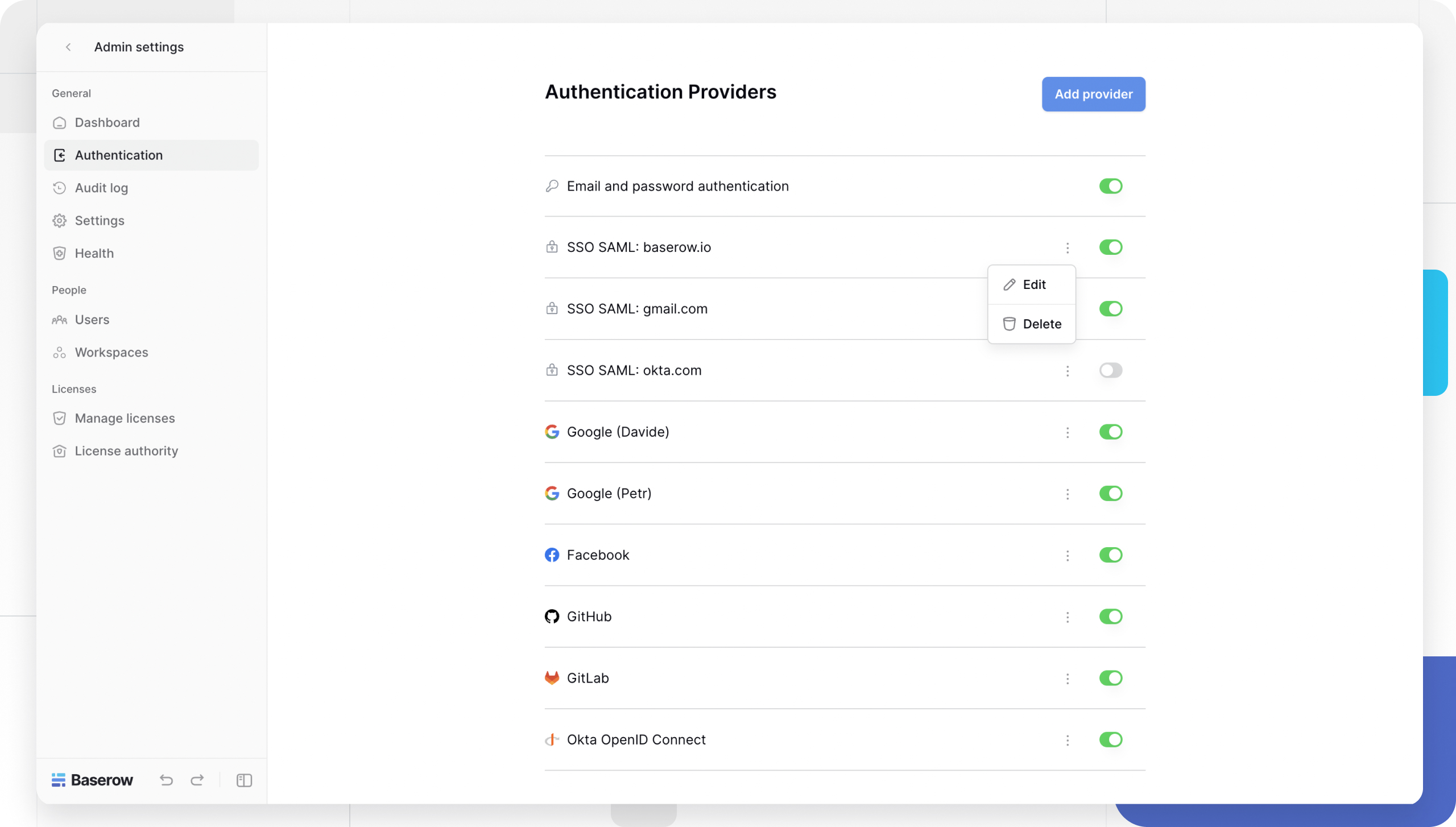
To configure SSO, you must be an Instance Admin. Navigate to the Admin Tools > General -> Authentication.
Configuration Prerequisites
Before adding a provider in Baserow, you will generally need to set up an “Application” inside your Identity Provider’s dashboard.
You typically need to gather:
- Client ID and Client Secret: (For OAuth/OIDC) generated by your provider.
- Metadata URL or XML: (For SAML) provided by your IdP.
- Callback URL: You must paste Baserow’s “Callback URL” into your provider’s settings. This ensures users are safely redirected back to Baserow after logging in.
Supported Protocols
Baserow supports the three major industry standards for authentication.
SAML 2.0
Security Assertion Markup Language (SAML) is the standard for enterprise-grade identity management. It allows your Identity Provider (IdP) to authenticate users and securely pass identity information to Baserow.
Security note: A SAML signature authenticates the identity provider, not email ownership. Make sure your identity provider is configured to require verified email addresses before authenticating users.
Supported dedicated integrations:
OAuth 2.0
OAuth 2 is commonly used for “Social Login” or delegated access. It allows users to authorize Baserow to verify their identity via a third-party service without sharing their password.
Supported dedicated integrations:
OpenID Connect (OIDC)
OpenID Connect is an identity layer built on top of OAuth 2.0. It allows Baserow to verify user identity against any service that supports the OIDC standard, even if a dedicated integration is not listed above.
Security note: Make sure your identity provider is configured to require verified email addresses before authenticating users. Baserow trusts the email address reported by the provider.
Managing Authentication Providers
To view or add providers:
- Log in as an Instance Admin.
- Go to Admin tools -> Authentication.
- You will see a list of active providers.
- Click Add provider, or click the three-dot icon to edit or delete an existing one.
Troubleshooting & Common Issues
Error: “Please use the provider that you originally signed up with”
This error occurs if a user already has a Baserow account (created via Email/Password) and tries to log in via Okta SSO later. For security reasons, Baserow does not automatically merge these identities by default.
Solutions:
- Delete and re-add (Recommended): Delete the user from the Baserow Users page. When they log in via Okta, a new account will be created automatically with the correct SSO link.
This option should only be considered if data loss is acceptable and after ensuring all data is backed up elsewhere.
- Enable Multiple Auth Methods (Advanced): An admin can set the environment variable
BASEROW_ALLOW_MULTIPLE_SSO_PROVIDERS_FOR_SAME_ACCOUNT=trueon the server. This allows merging but increases security risk. - Maintain consistent authentication method: Users can continue logging in with the authentication method they signed up with. This avoids changing Baserow’s default behavior and maintains existing security measures.
For optimal security, we recommend maintaining consistent authentication methods unless necessary. If enabling multiple login methods is essential, implement additional security measures to mitigate potential risks.
Learn more: SSO configuration
Frequently Asked Questions (FAQ)
Can I enforce SSO and disable password login?
Yes. Administrators can disable the standard “Email and password” authentication method in the settings. This forces all users to log in via your configured SSO provider, ensuring strict adherence to company security policies.
Can I use multiple SSO providers at once?
Yes. You can configure multiple providers (e.g., “Google” for the marketing team and “GitHub” for the engineering team). Users will see buttons for all active providers on the login screen.
What happens to existing accounts if I enable SSO?
If the email address in Baserow matches the email address reported by the SSO provider, Baserow can link the SSO identity to the existing account. Because Baserow trusts the email address reported by the provider, administrators should ensure their identity provider requires verified email addresses.
Related content
Still need help? If you’re looking for something else, please feel free to make recommendations or ask us questions; we’re ready to assist you.
- Ask the Baserow community
- Contact support for questions about Baserow or help with your account