 Docs
DocsTwo-factor authentication (2FA)
Two-factor authentication (2FA) adds an extra layer of security to your Baserow account. In addition to your password, you will need to provide a unique verification code generated by an authenticator app on your phone to log in.
This ensures that even if someone guesses or steals your password, they cannot access your account without your physical device.
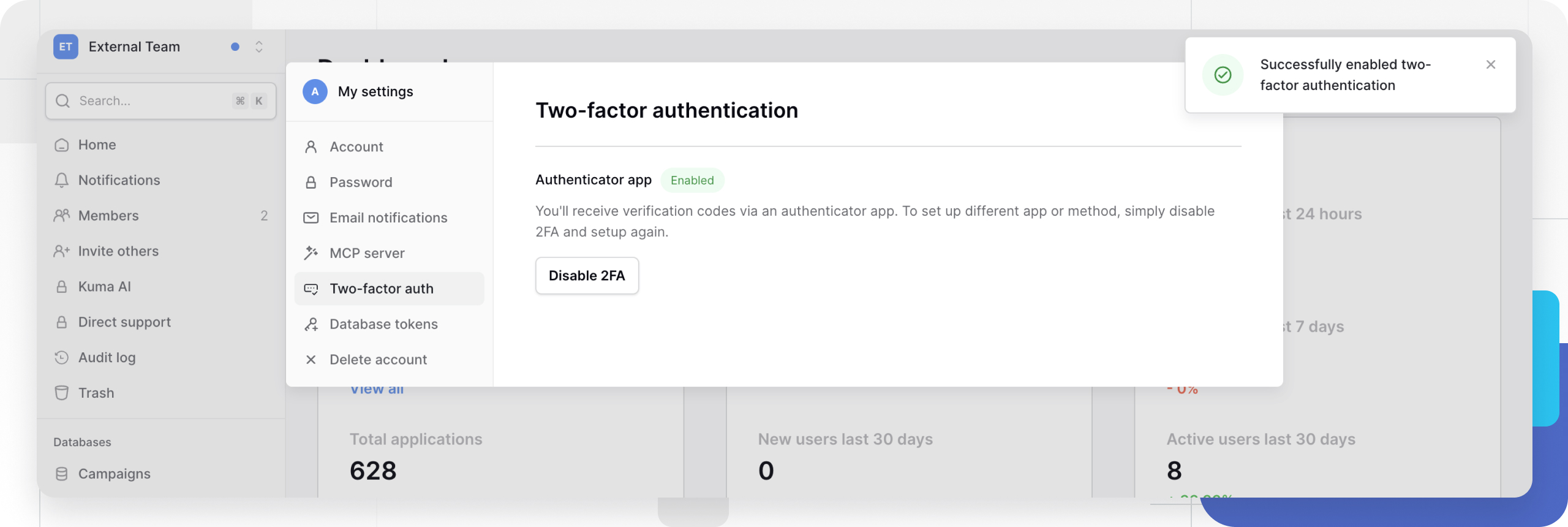
Enable 2FA
To set up two-factor authentication:
- Click on your account avatar in the top right corner and select Settings.
- Click the Two-factor auth tab.
- Click the Enable 2FA button.
- You will be prompted to select an authentication method. Select Authenticator app (Recommended).
- Click Continue.
Configure your authenticator app
We recommend using a trusted authenticator app such as:
- Google Authenticator
- Authy
- Microsoft Authenticator
- 1Password
Steps to pair your device:
- Open your authenticator app on your mobile device.
- Select the option to add a new account or scan a QR code.
- Scan the QR code displayed on your Baserow screen.
- If you cannot scan the code, you can manually enter the secret key provided below the QR code.
- Once scanned, your app will generate a 6-digit code.
- Enter this 6-digit code into the Baserow “Verification code” field.
- Click Verify.
Recovery codes
After successfully enabling 2FA, Baserow will display a list of recovery codes.
Copy and save these codes in a secure place (like a password manager).
If you lose your phone or access to your authenticator app, these codes are the only way to regain access to your account.
Logging in with 2FA
Once enabled, the login process will change slightly:
- Enter your email and password as usual.
- You will be prompted to enter a 6-digit authentication code.
- Open your authenticator app to view the current code for Baserow.
- Enter the code to access your dashboard.
Disable 2FA
If you wish to turn off 2-factor authentication:
- Navigate to Settings -> Two-factor authentication.
- Click the Disable 2FA button.
- You will be asked to enter your password to confirm this action.
Security Warning: Disabling 2FA makes your account less secure. We strongly recommend keeping it enabled to protect your data.
Manage users’ two-factor authentication (Admins)
Instance administrators can now view whether users have two-factor authentication (2FA) enabled.
If a user loses access to their authenticator app or recovery codes, an instance administrator can reset their two-factor authentication so they can set it up again.
Related resources
Account management
- Password management - Change and secure your password
- Delete your Baserow account - Permanent account removal
- Database tokens - API authentication
- Notifications - Configure email alerts
Still need help? If you’re looking for something else, please feel free to make recommendations or ask us questions; we’re ready to assist you.
- Ask the Baserow community
- Contact support for questions about Baserow or help with your account