 Docs
DocsEdit row link - Edit existing rows via form
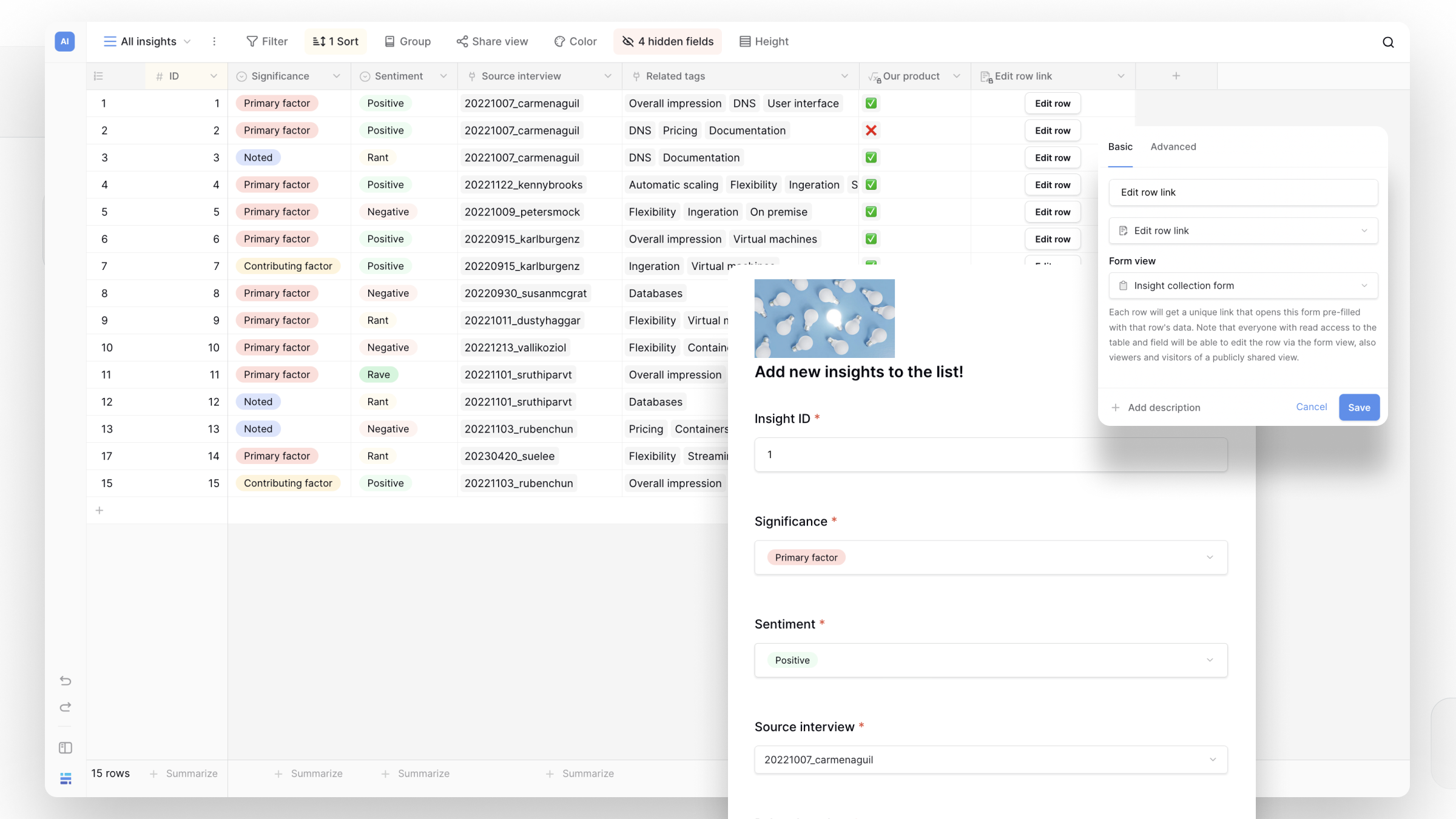
Baserow forms are typically used to collect new data and create new rows. However, using the Edit row link field, you can generate unique, secure links that allow users to update existing records through a pre-filled form.
This guide covers how to set up editable form links, securely share them, and collect updates from people who don’t have access to your Baserow workspace.
Overview
The Edit row link field connects a specific row in your table to a Form view. It generates a unique URL for that specific row.
When a user clicks the link:
- They are taken to a Form view.
- The form fields are pre-filled with the row’s current data.
- The user can change the values and submit the form.
- The existing row in your database is updated instantly; no new row is created.
How to set up editable form links
To allow users to edit existing rows, you need a Form view and the Edit row link field that generates the unique URLs.
Step 1: Prepare your Form view
- Navigate to your table and create or select a Form view.
- Configure the form by adding the fields you want users to be able to edit.
- (Optional) Hide any fields you do not want external users to see or change.
Step 2: Add the form link field
- Switch back to a Grid view (or any view where you can add fields).
- Create a new field and select **Edit row link field as the field type.
- In the field settings, select the Form view you configured in Step 1.
- Click Create field.
Baserow will automatically generate a unique, clickable URL for every row in your table.
Common use cases
Editing rows via forms is perfect for collecting updates from external stakeholders without giving them database access:
- User Profile Updates: Send a link to clients or members so they can update their contact information, address, or preferences.
- Order Tracking & Status: Allow external vendors or delivery drivers to update the status of an order or shipment by clicking a link on their mobile device.
- Event RSVPs: Send a pre-filled form to invited guests. If they change their mind, they can click the same link to update their RSVP status from “Attending” to “Not Attending.”
- Application Revisions: If an applicant made a mistake on their submission, you can send them a link to correct their specific application data without requiring them to submit a duplicate form.
Security and sharing
Are the links secure? Yes. Every URL generated by this field contains a secure, randomized cryptographic token. These links are unique and cannot be guessed or brute-forced by malicious actors.
Who can use the link? Anyone with the link can view the pre-filled data and submit changes to that specific row. Because the link grants edit access to that row, you should treat it like a password. Only share the link directly with the person responsible for updating that record (for example, via an automated email or direct message).
Revoking access If a link is accidentally shared or you no longer want a row to be editable, you can delete the Form view, remove the field from the Form view, or regenerate the token (if applicable in settings) to invalidate old links.
Frequently asked questions
Can a user edit hidden fields? No. If a field is hidden in the Form view settings, it will not appear on the pre-filled form, and the user cannot view or edit that data.
What happens if two people edit the form at the same time? If multiple people open the unique link and submit changes, Baserow will save the data from the most recent submission.
Can I trigger an automation when a row is updated via form? Yes. Because submitting the form updates an existing row, it will trigger any automations set to run “When a row is updated” for those specific fields.
Related content
- Form view
- Adding and editing rows
- Pre-fill forms with link row data - Dynamic form data
- Public sharing - Share forms externally
Still need help? If you’re looking for something else, please feel free to make recommendations or ask us questions; we’re ready to assist you.
- Ask the Baserow community
- Contact support for questions about Baserow or help with your account