 Docs
Connect Baserow to ChatGPT Using MCP
Connect your Baserow database to ChatGPT using the Model Context Protocol (MCP). With Baserow’s native MCP integration, ChatGPT can discover your databases, inspect table schemas, search records, and create, update, or delete rows using natural language.
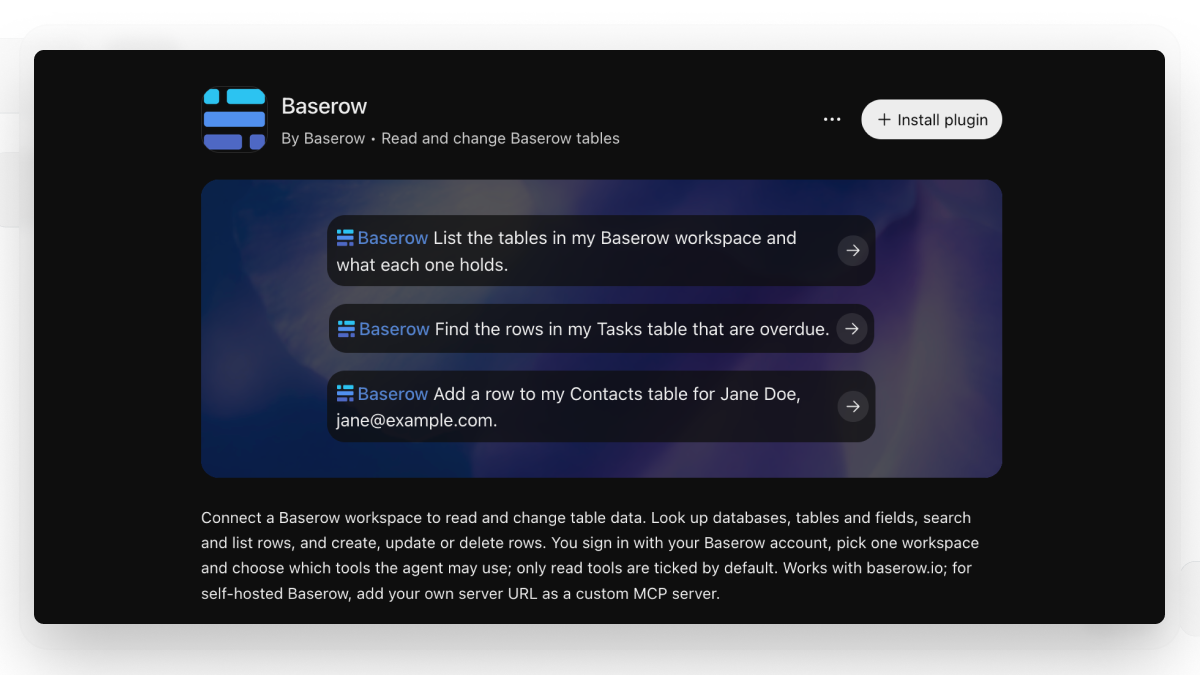
Baserow offers a direct app in ChatGPT, so you can connect your workspace without manually configuring an MCP server or writing JSON configuration.
Once connected, you can ask ChatGPT to retrieve information, manage database records, and work with your data through conversational prompts.
Whether you want to query a project management database, update customer information, or generate reports from existing records, Baserow MCP connects your database directly to ChatGPT.
Learn more: What is an MCP server?
What can you do with ChatGPT and Baserow?
Once connected, ChatGPT can use Baserow’s MCP tools to interact with your database.
Available row-management operations include:
| Operation | Description |
|---|---|
list_databases |
Find databases in your connected workspace. |
list_tables |
List tables in a database. |
get_table_schema |
Retrieve table fields and their definitions. |
list_table_rows |
Search and retrieve database records. |
create_rows |
Add new records to a table. |
update_rows |
Modify existing records. |
delete_rows |
Delete records from a table. |
You can use ChatGPT to:
- Search database records: Find information across your tables using natural language.
- Retrieve information: Ask questions about your existing database records.
- Create records: Add new rows without manually filling out forms.
- Update records: Change existing information, including multiple rows.
- Explore database structures: Inspect tables and field definitions before performing operations.
- Generate summaries: Analyze retrieved records and organize the information into reports.
The current row-management tools can read database structures and manage rows. They cannot create or modify databases, tables, or fields.
Connect Baserow to ChatGPT
The easiest way to connect Baserow to ChatGPT is through the Baserow app.
You don’t need to generate an MCP endpoint manually, create an API token, or edit configuration files.
Prerequisites
- An active Baserow account.
- Access to the Baserow workspace you want to connect.
- Access to ChatGPT.
Step 1. Open the Baserow app in ChatGPT
Open the Baserow app in ChatGPT.
Select the option to connect the app.
Step 2. Continue to Baserow
Review the connection details and select Continue to Baserow.
ChatGPT will redirect you to Baserow to authorize the connection.
Step 3. Sign in to your Baserow account
Sign in using your Baserow credentials.
If you are already signed in, you may be redirected directly to the authorization screen.
Step 4. Select a workspace
Choose the Baserow workspace you want to connect to.
Each connection is associated with one workspace. ChatGPT will only be able to access the workspace you select.
If you want to work with another workspace, you will need to establish a separate connection.
Step 5. Review and grant permissions
Choose which tools ChatGPT can use in your workspace.
The authorization screen groups permissions into categories.
Databases
Available permission options include:
- Read tables and rows.
- List databases.
- List applications.
- List tables.
- Get table schemas.
- List rows and views.
- Create rows.
- Update rows.
- Create tables and fields.
- Update fields.
- Create views and view filters.
- Delete rows and fields, where available.
Automations
The authorization screen may also display permissions for reading and managing workflows and workflow nodes.
Only read tools are selected by default. You can enable additional permissions depending on what you want ChatGPT to do.
Review your selections and click Allow.
Step 6. Start using Baserow in ChatGPT
After authorization, you’ll be redirected back to ChatGPT.
Your Baserow connection is now available.
You can start asking ChatGPT questions about your databases or instruct it to perform operations, depending on the permissions you granted.
Example prompts:
- “List all databases in my Baserow workspace.”
- “Find all tasks that are overdue in my project management table.”
- “Create a new task called ‘Review the Q4 marketing strategy’ with High priority.”
- “Find all customers from Germany in my CRM.”
- “Update the status of task #47 to In Progress.”
- “Summarize all projects that are currently in progress.”
Tip: Be specific about the database and table you want to work with. For changes affecting multiple records, ask ChatGPT to show you which rows will be changed before proceeding.
Example: Manage a project management database with ChatGPT
Imagine your team uses Baserow to manage projects, tasks, deadlines, and team assignments.
Instead of manually navigating tables and editing individual records, you can ask ChatGPT to perform these operations.
1. Find overdue tasks
Prompt:
“Find all overdue tasks in my Baserow project management database. Show me the task name, assigned team member, due date, and current status.”
ChatGPT can inspect the table schema, retrieve relevant records, and organize the results.
2. Create a new task
Prompt:
“Create a new task called ‘Prepare the November marketing report’. Assign it to Sarah, set the priority to High, and set the due date to November 15.”
ChatGPT identifies the relevant fields and creates a new row.
3. Update task statuses
Prompt:
“Find all tasks in the Marketing project that are marked as In Review and change their status to Done.”
ChatGPT can identify the matching records and update their statuses.
4. Generate a project summary
Prompt:
“Summarize all active projects. Group them by status and show how many tasks are completed, in progress, or overdue.”
ChatGPT retrieves the relevant records and organizes the information into a summary.
In each case, ChatGPT uses the Baserow MCP tools to inspect your database structure and interact with the records.
Learn more: Baserow MCP server AI integration
Best practices for using ChatGPT with Baserow
- Review permissions: Only enable the tools ChatGPT needs. Read-only permissions are enabled by default.
- Inspect the schema first: Ask ChatGPT to retrieve the table schema before performing complex operations. This helps it identify the correct field names.
- Preview bulk changes: Before updating or deleting multiple records, ask ChatGPT to identify the affected rows and summarize the proposed changes.
- Use specific instructions: Include table names, field names, record identifiers, and expected values in your prompts whenever possible.
- Verify important changes: Review critical updates and deletions in Baserow after ChatGPT performs them.
- Check search results: Row searches are paginated. Ask ChatGPT to retrieve additional pages when working with larger datasets.
Frequently asked questions
Is there a direct Baserow integration for ChatGPT?
Yes. Baserow is available as an app in ChatGPT. You can connect your Baserow workspace directly by signing in, selecting a workspace, and authorizing the tools ChatGPT can use.
Do I need to configure an MCP server manually?
No. The direct Baserow app handles authentication and connection setup for you. You don’t need to generate an MCP URL, create an API token, or edit JSON configuration.
Do I need an API token to connect Baserow to ChatGPT?
No. The direct integration uses your Baserow account to authenticate and authorize access to a selected workspace.
Can ChatGPT read and write data in Baserow?
Yes. ChatGPT can retrieve database information, search records, create new rows, update existing rows, and delete rows, depending on the permissions you grant.
Can ChatGPT create tables or fields in Baserow?
The current row-management MCP tools can read database structures but cannot create or modify databases, tables, or fields.
Use the Baserow interface to make structural changes to your databases.
Can I connect ChatGPT to multiple Baserow workspaces?
Yes. Each connection is associated with one workspace. To access multiple workspaces, establish separate connections and authorize each one.
Can I use ChatGPT to bulk update records?
Yes. ChatGPT can update multiple rows using the update_rows tool.
Before making bulk changes, ask ChatGPT to identify the affected records and show you what it intends to change.
Large operations are processed in batches of up to 200 rows.
Can I recover deleted records?
Yes. Deleted rows are moved to Baserow’s trash, where they can be restored for three days by default.
There is no undo tool available through the MCP connection, so review deletion requests carefully.
Why can’t ChatGPT access my Baserow tables?
First, check that you selected the correct workspace when connecting.
If the workspace has no databases, list_databases will return no results.
If a required tool is missing, it may not have been authorized during sign-in. Re-authenticate the Baserow connection and select the required permissions. A plain reconnect may retain the previous authorization.
Is my Baserow data secure when using ChatGPT?
Access is limited to the workspace and tools authorized during the connection process.
Only enable the permissions required for your use case. Remember that information retrieved by ChatGPT is processed by the AI service, so review the applicable privacy and data-handling policies of both services.
Can I use Baserow MCP with self-hosted Baserow?
Yes. Self-hosted Baserow can be connected using a custom MCP configuration, provided MCP authentication is enabled and the installation is configured to accept connections from the AI client.
See the MCP OAuth setup documentation for more information.
Related resources
- Baserow MCP Server – Learn about Baserow’s MCP integration and supported AI clients.
- Connect Baserow to Claude – Connect your Baserow workspace to Claude.
- Database API documentation – Integrate Baserow with external applications.
- Webhooks – Trigger external processes when data changes.
- Database tokens – Manage API authentication.
- Permissions overview – Understand workspace access controls.
Still need help? Visit the Baserow Community or contact our support team.
- On this page
- What can you do with ChatGPT and Baserow?
- Connect Baserow to ChatGPT
- Example: Manage a project management database with ChatGPT
- Best practices for using ChatGPT with Baserow
- Frequently asked questions
- Is there a direct Baserow integration for ChatGPT?
- Do I need to configure an MCP server manually?
- Do I need an API token to connect Baserow to ChatGPT?
- Can ChatGPT read and write data in Baserow?
- Can ChatGPT create tables or fields in Baserow?
- Can I connect ChatGPT to multiple Baserow workspaces?
- Can I use ChatGPT to bulk update records?
- Can I recover deleted records?
- Why can’t ChatGPT access my Baserow tables?
- Is my Baserow data secure when using ChatGPT?
- Can I use Baserow MCP with self-hosted Baserow?
- Related resources